
26-10-22 Release Notes: Journal & Chart Enhancements/Platform fixes
TradeTool Platform
Release Notes
Trade Journal Upgrades
The Journal AI system has been substantially improved and now offers more in-depth analysis. Select one or more accounts, filter your timeframe, click AI, and go!
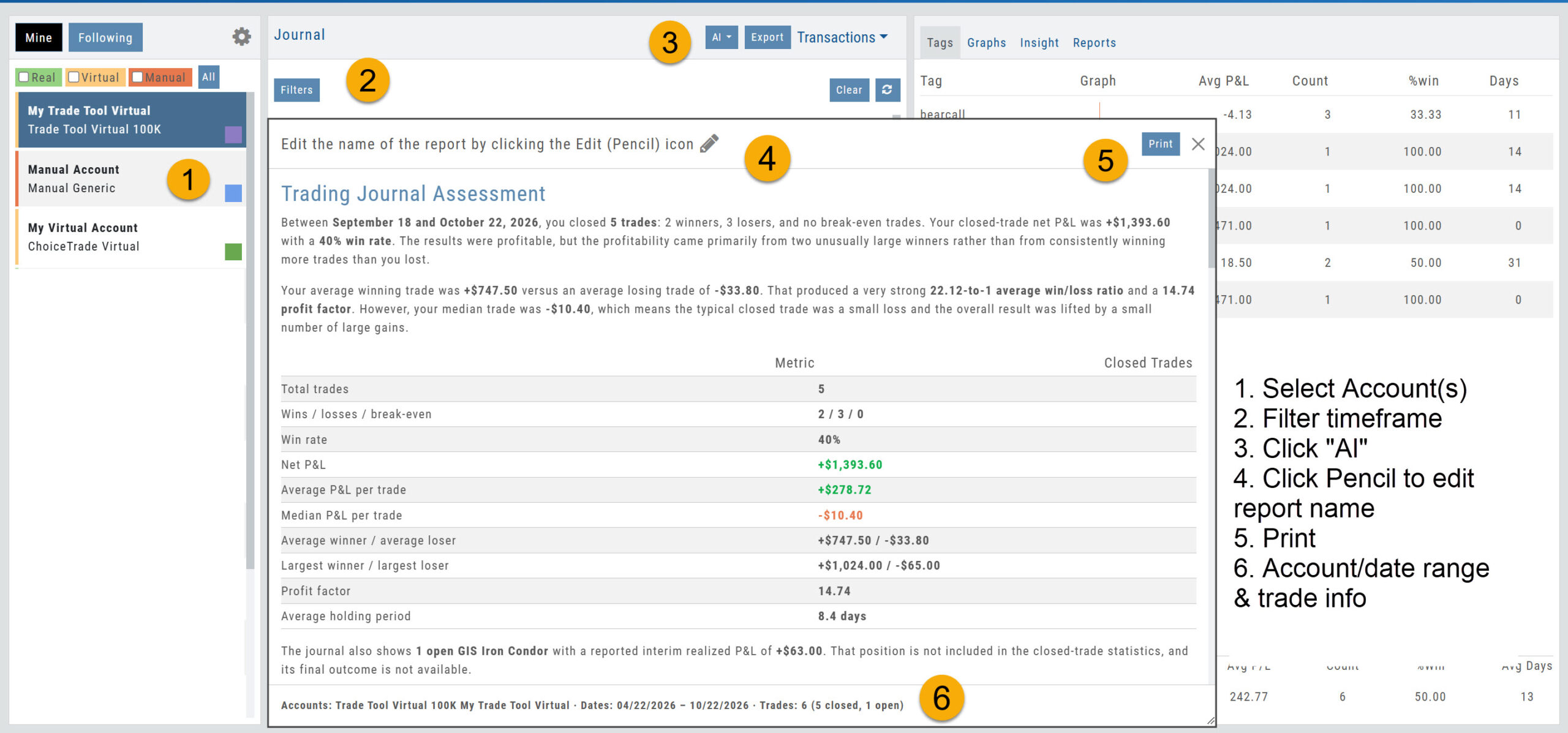
The resulting report provides
- An overall Assessment
- What's working / What needs improvement
- Strategy Analysis
- Risk & Trade Management
- Patterns and Observations
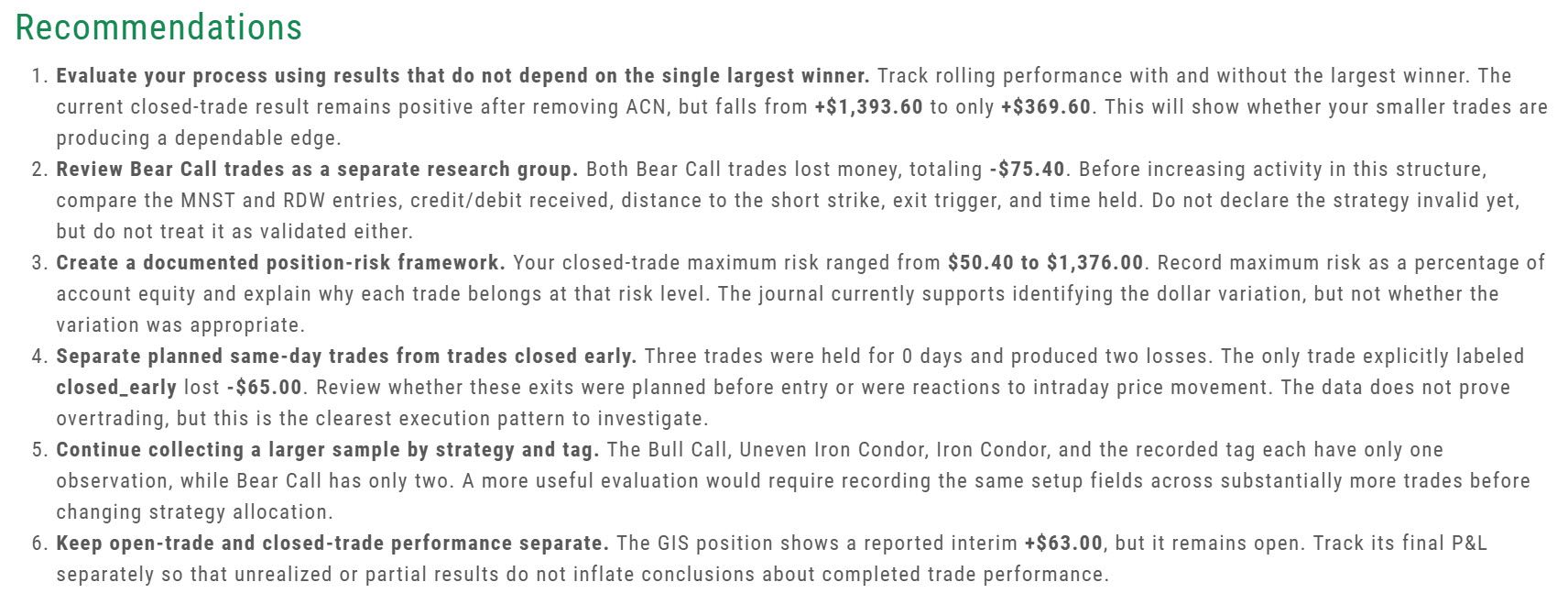
- Recommendations for improvement
Trade From Chart
Trade From Chart lets you set up a trade by clicking on the price chart.
- Smarter default stop. The suggested stop is based on the ATR (Average True Range), which measures a stock's usual price movement. The stop is set 1.5 times the ATR away from your entry price, so a stock with wider swings gets a wider stop, allowing for normal day-to-day moves. The target and stop are based on the chart interval you are viewing, using the last 14 bars: on a daily chart that's 14 days, and on a 5-minute chart it's 14 five-minute bars (70 minutes).
- Your levels stay in view. If either the Target Price or Stop Price is above or below the current chart view, the chart 'zooms' out automatically to include both.
- New "Tick" option. Set Targets and Stops by $, %, and now "Ticks" (the smallest amount a stock can move) in 1-cent increments.
Whichever Range choice you pick ($, %, or T) now stays selected (sticky).
Chart Improvements
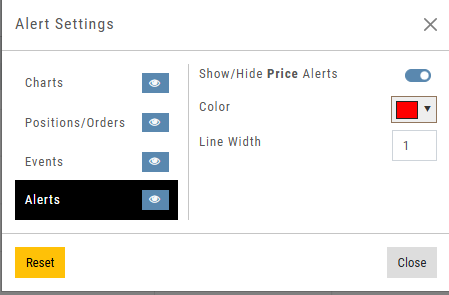
- Alerts on the chart. Price alerts you've set now show as lines on the chart, so you can see where they will go off. In addition, you can turn this feature on or off as you wish. This can be found in Chart Settings under Alerts.
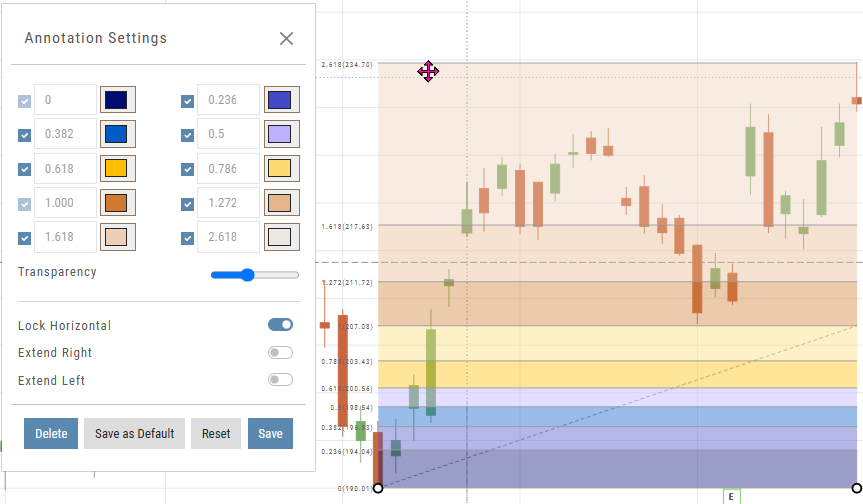
- Fibonacci "Lock Horizontal" switch. The Fibonacci tool draws lines at key levels where a price often pauses or turns around. "Lock Horizontal" keeps the tool level while you draw, making it easier to place.
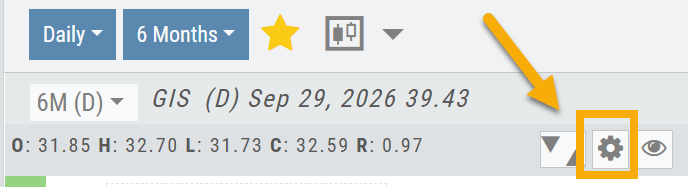
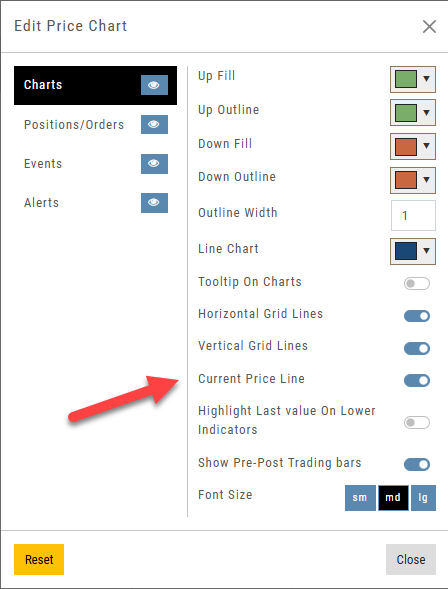
- Hide the current price line. The Price Chart controls, accessed as shown below, allow you to hide the current price line across the chart. The current price label still appears on the right edge of the chart.
Resetting Your Practice (Virtual) Account
- Resetting the Balance. This refills your cash and updates your Account Value. Any open positions are unaffected. Note: Your total Account Value may not match the reset amount if you have open positions.
Change Log
- AddedDonchian Channel — description added.
- FixedReward/Risk ratio — corrected for limit orders.
- ImprovedPractice Account — when either the Bid or Ask is $0.00, the system now treats it as $0.01 so you aren't stuck in a trade.
- Added"Cash Balance" field — the Account Summary tab shows your cash balance: the money not yet in a trade.
- ChangedStrategy Templates — error message reworded for clarity.
26-09-27 Release Notes: Enhancements/Fixes
TradeTool Platform
Release Notes
Improvements
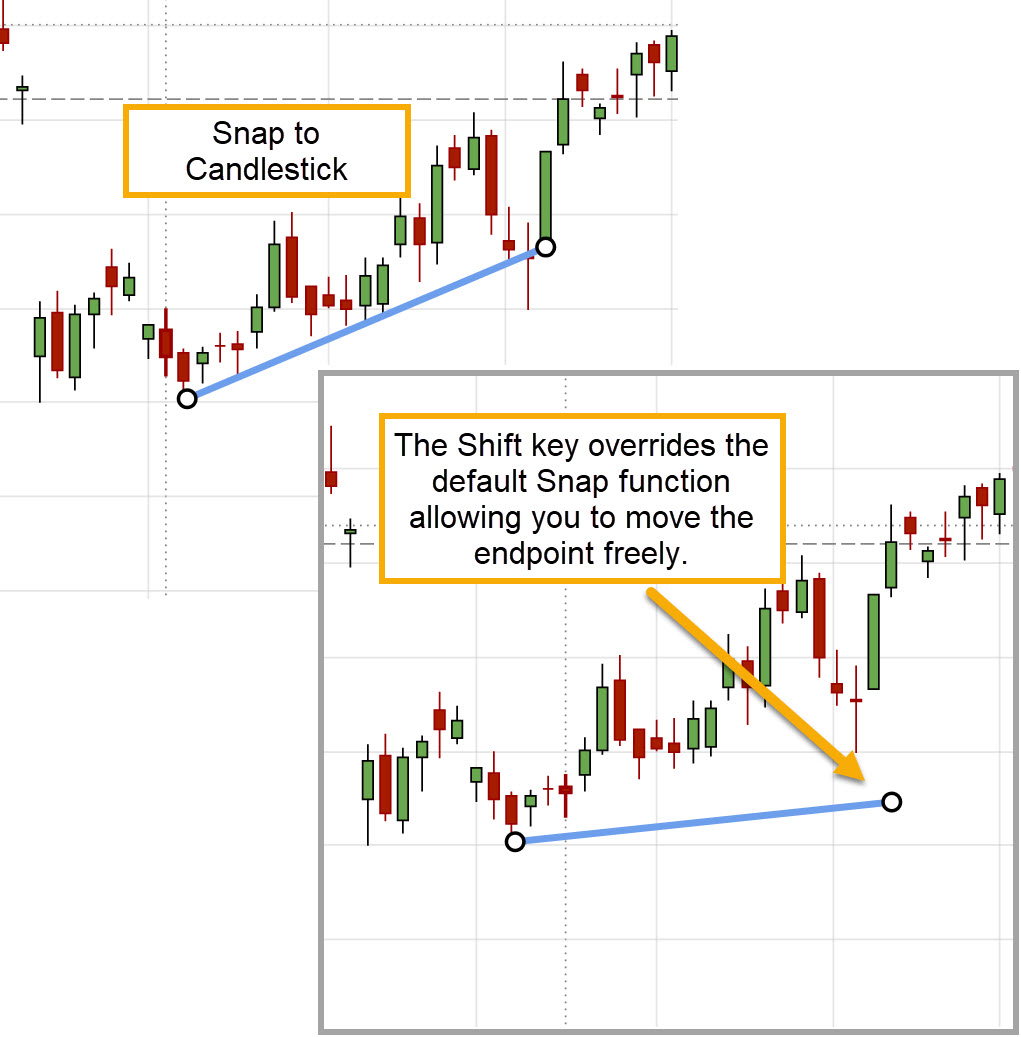
Shift Key Overrides Snapping to Candle
Hold the Shift key to override lines/annotations snapping to candle on the Chart.
Trade From The Chart
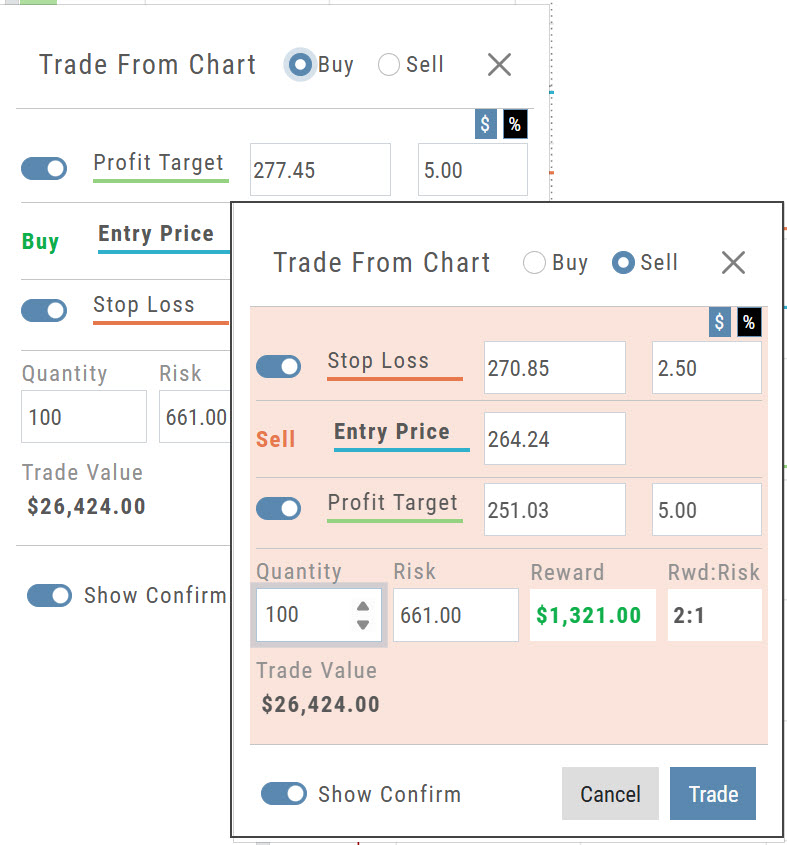
Bracket/OCO order setup now differentiates between Buying and Selling, with a red display for Sell activity.
- Buy keeps the standard display, with the Profit Target above the Entry Price and the Stop Loss below it.
- Sell switches to a red display, with the Stop Loss above the Entry Price and the Profit Target below it.
Percentage of Planned Risk
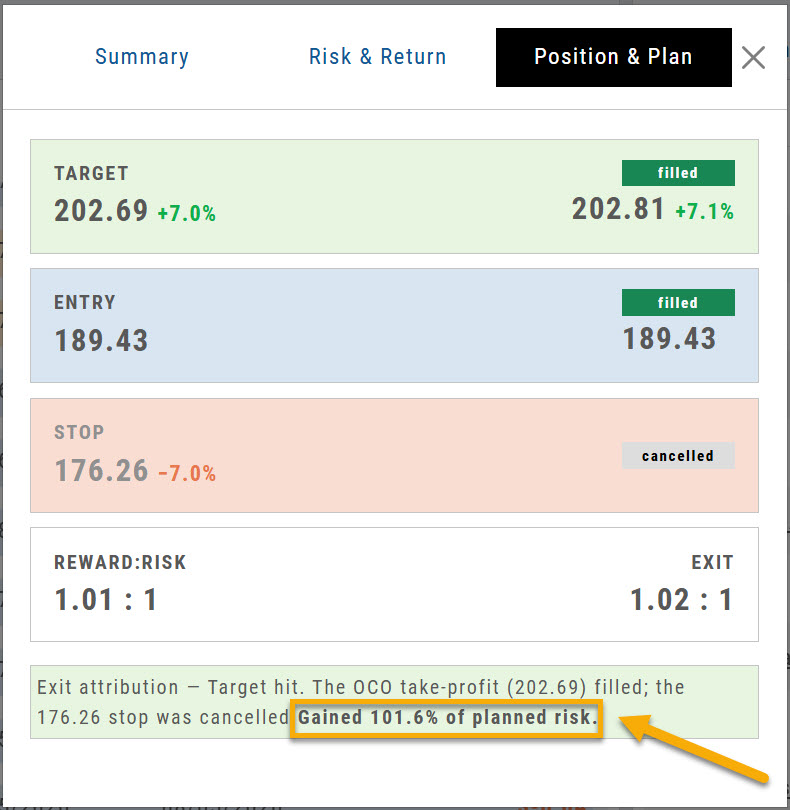
Percentage of Planned Risk has been added to the Journal trade results, as shown.
For example, the trade on the right hit its target. The exit attribution now reads Gained 101.6% of planned risk, which shows how the result compares to the amount you planned to risk on the trade.
Price Chart Changes Are Auto-Saved
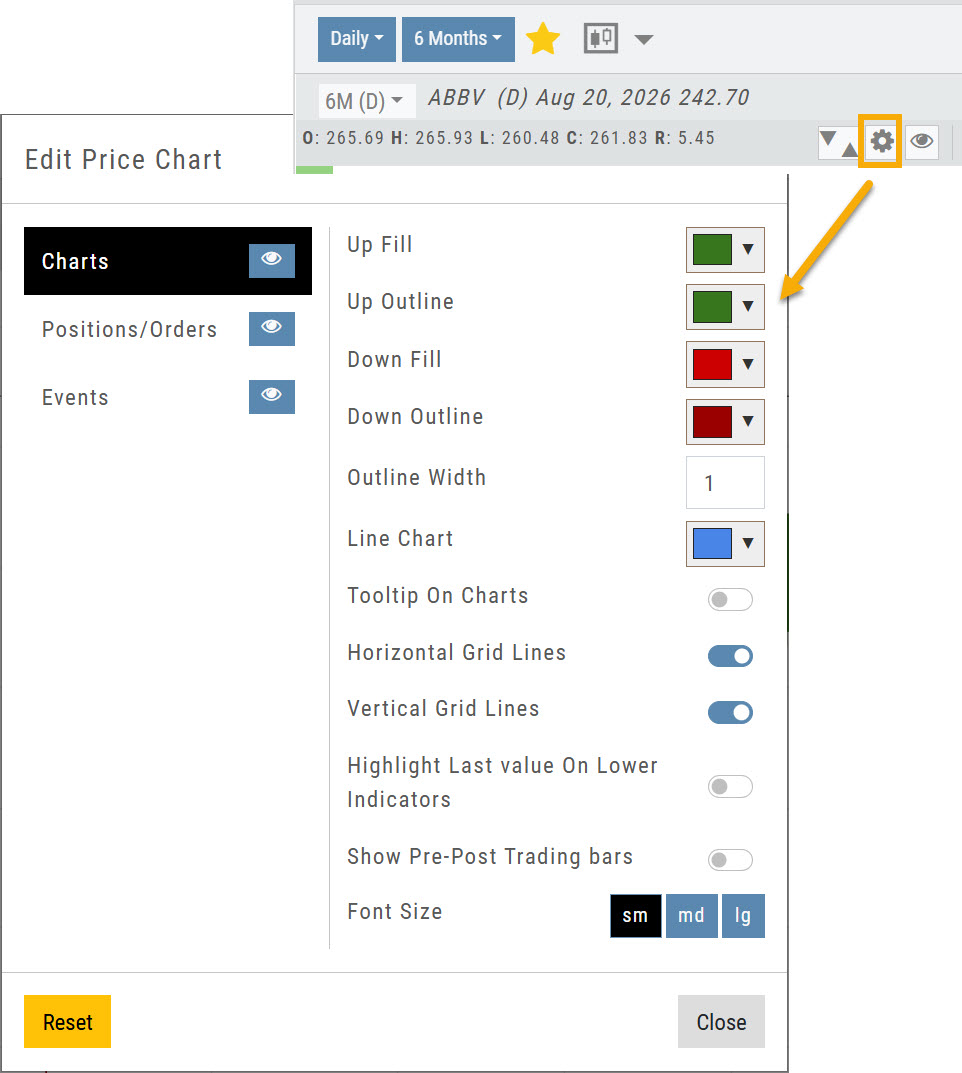
Changes to the Price Chart settings are now saved automatically.
Click the gear icon to open Edit Price Chart, make any changes, then click Close. Your changes stay in place until you change them again.
Manage Positions, Orders & Staged Orders Display on the Chart
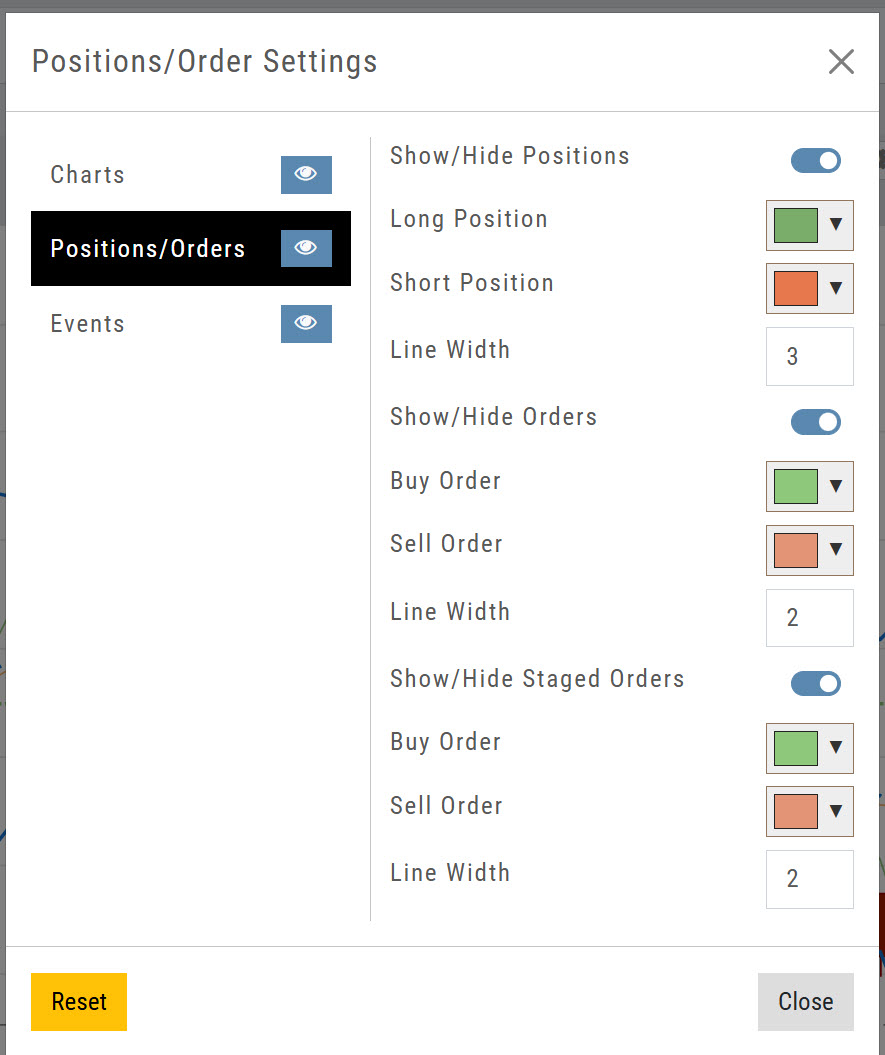
Click on the Price Chart Control gear icon, then Positions/Orders to manage Positions, Orders & Staged Orders on the Chart to further differentiate activity.
- Toggle to display or hide
- Select colors for Long/Short Positions
- Select line width
Manage Pre-Post Trading Bars on the Chart
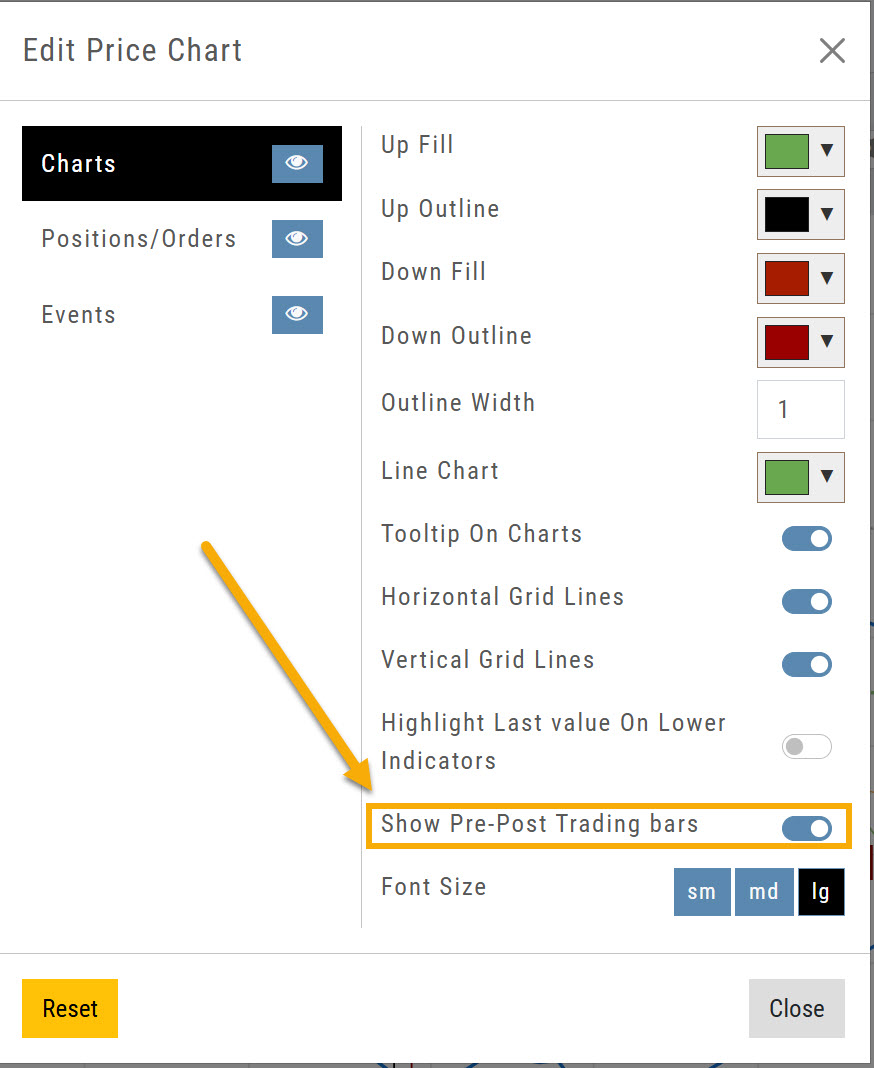
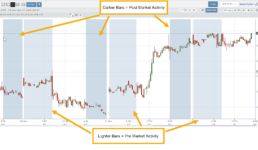
The Price Chart settings now let you display pre-market and post-market bars on intraday charts only.
Open Edit Price Chart from the gear icon and turn Show Pre-Post Trading bars on. If you don't want them, turn the toggle off.
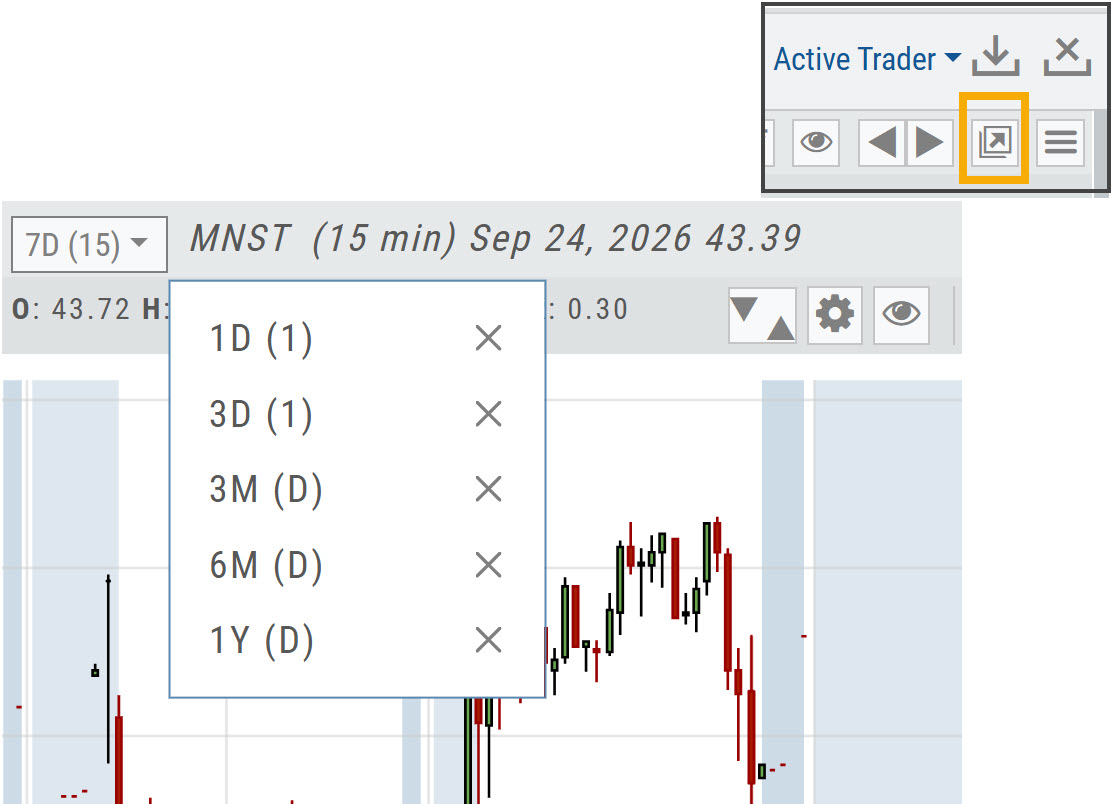
Access Your Favorite Interval/Time Frame on Full Size Charts
Click the Go Big icon near the upper right corner, above the chart, to expand the chart to screen size.
Your Favorite interval/time frame chart views are available from the top left corner of the chart.
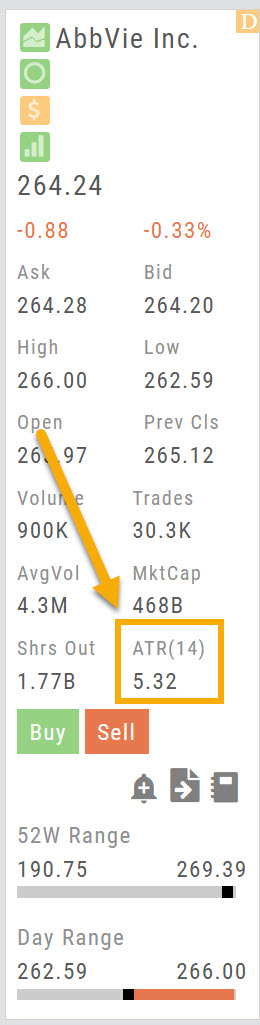
ATR Added to the Stock Info Bar
ATR(14) has been added to the stock info bar, next to Shrs Out.
ATR (Average True Range) shows how much a stock typically moves over the last 14 periods, a quick read on its volatility.
Fixes / Change Log
- FixedTradier Live: BNY Symbol: BNY now displays on the chart. (Positions showed the former symbol, BK, which changed to BNY in May.)
- FixedTradier: SEI Symbol: SEI no longer displays as SOI.
- FixedHome Page Sector Bar Graph: now updates.
- FixedCompare: company names now display.
- FixedChart Profiles: your chart profiles now save.
- FixedTrendlines: now extend past the last candle when time is added to the chart.
- FixedModify Orders on Chart: now works correctly.
- FixedSector List: Media & Telecommunications is back in the list.
26-09 Release Notes: Chart Period Controls, Journal Trade Results, Strategy Metrics
TradeTool Platform
Release Notes
Chart Period Controls
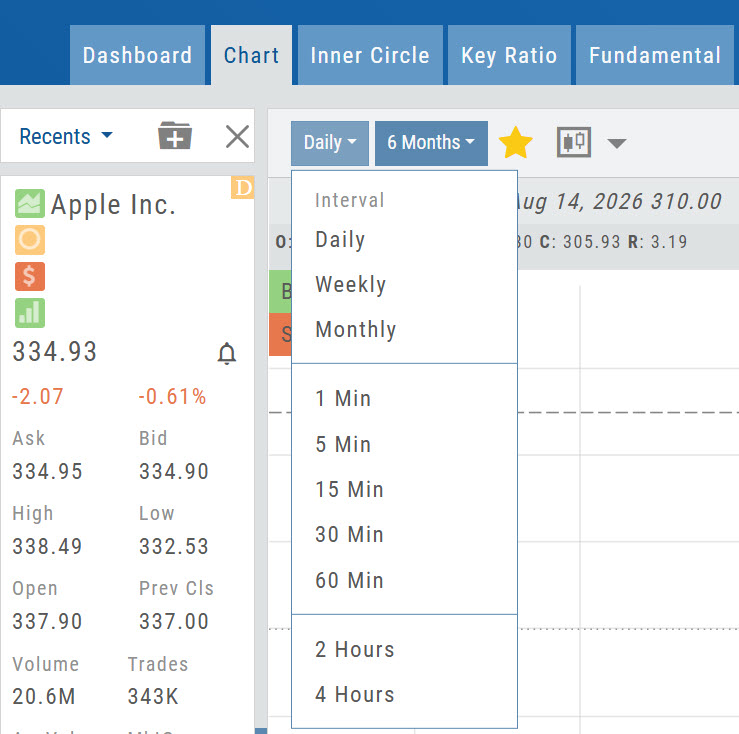
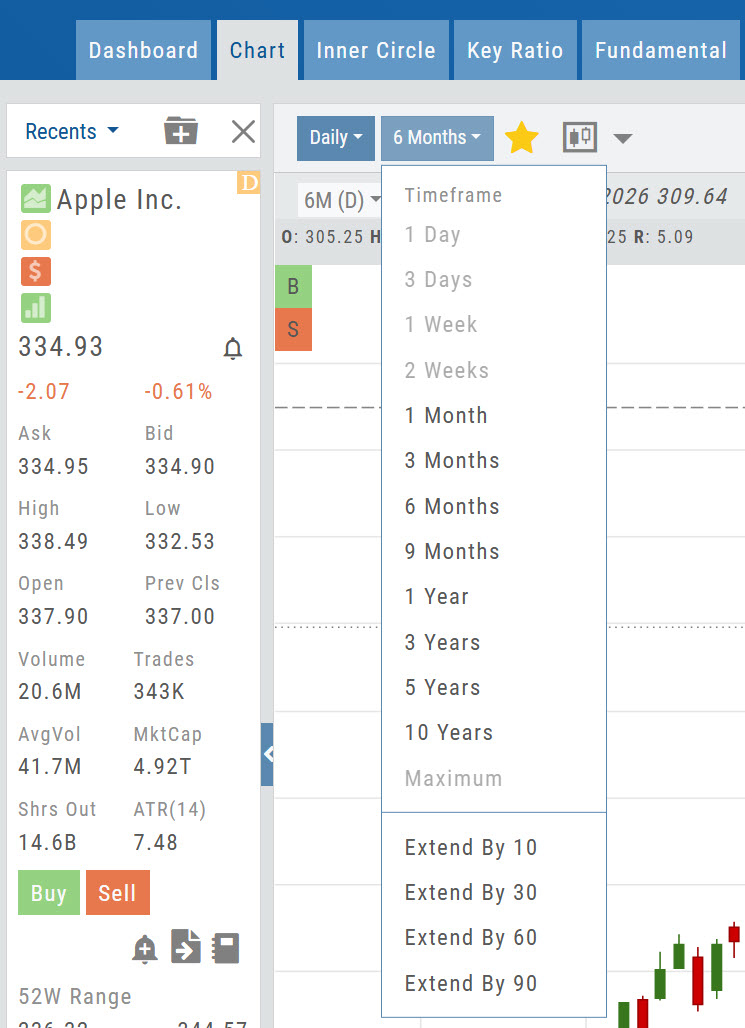
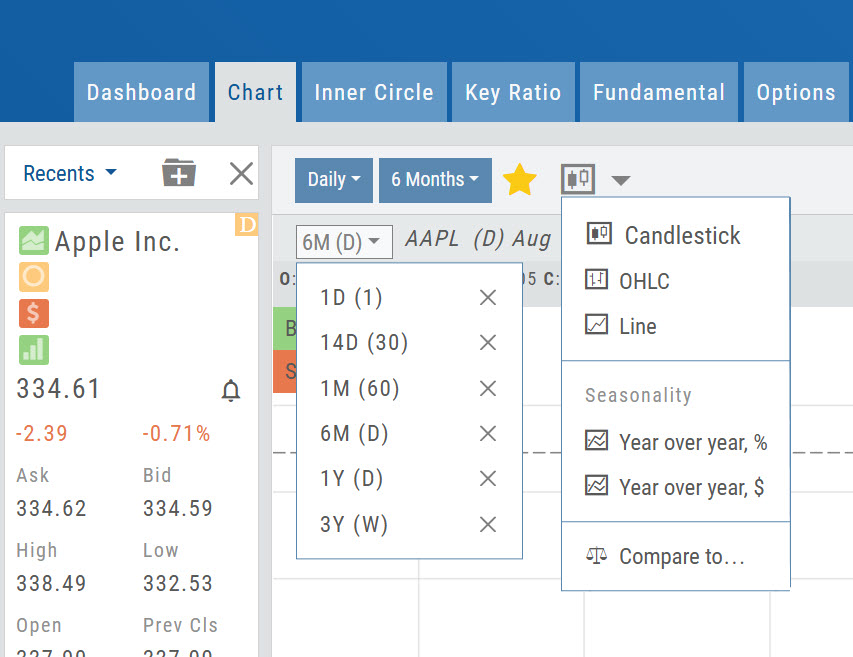
Interval and Timeframe are now set independently, giving you more flexibility when setting up your charts.
What's new
- Interval determines how each bar or candle is displayed — Daily, Weekly, Monthly, 1 Min through 60 Min, 2 Hours and 4 Hours.
- Timeframe determines how much historical data is displayed — 1 Day through 10 Years.
- Extend By 10, 30, 60 or 90 periods is now available within the Timeframe menu.
- Your selections are sticky — they remain in place until you change them.
How the two menus work together
Compatible selections are shown normally, while unavailable combinations are faded. Selecting a 1 Min Interval, for example, allows Timeframes of 1 Day, 3 Days or 1 Week.
Access Your Favorites
The Interval/Timeframes that are Starred, indicating “Favorites” are stored in this drop-down.
To add a new “Favorite” click the Star to the right of the new Interval/Timeframe combination.
To remove: Select the one to remove and click the highlighted Star to remove.
Note: Chart Views selection has been moved to its new location. Select Line, OHLC or (default) Candlestick. Seasonality and Compare function capability are also housed here.
Enhanced Trade Results in the Journal
The Trade Journal provides a more complete view of your trade results — from entry through close, including adjustments and expirations along the way.
How to open it
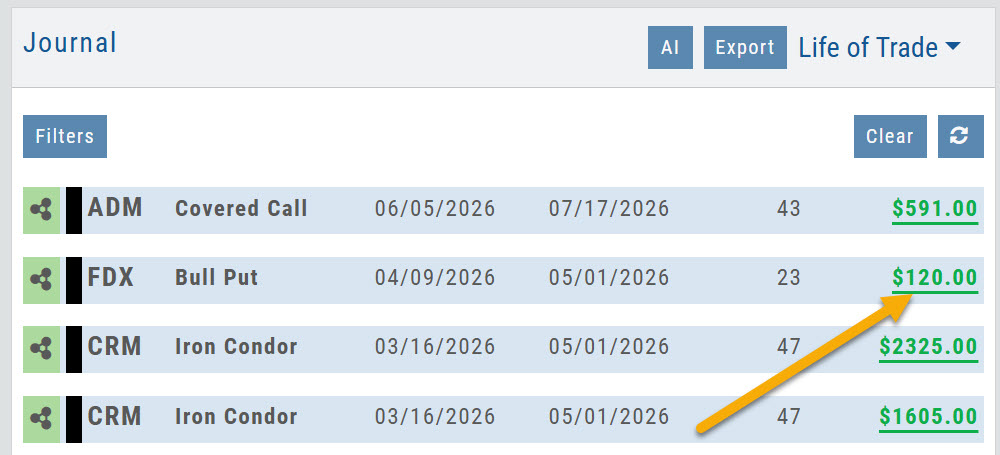
From the Life of Trade view, click the Gain/Loss value on the far right of a completed trade.
What you'll see
- Trade performance at a glance — Profit/Loss, % of Target and trade duration.
- Visual trade history — entries, adjustments and exits shown directly on the chart, including OCO Stop and Limit orders when applicable.
- Risk & Return — compare the original trade plan with the actual outcome, including Reward and Return on Risk.
- Performance Evaluation — identify the factors that contributed to or detracted from the trade.
- Position & Plan details — see how the actual execution and results compared with the original plan.
- Options Trade Analysis — review key Greeks and volatility metrics, including Delta, Theta, Vega, Gamma, IV and IV Rank.
The tabs you see depend on the type of trade.
Stock trades
Summary · Risk & Return · Position & Plan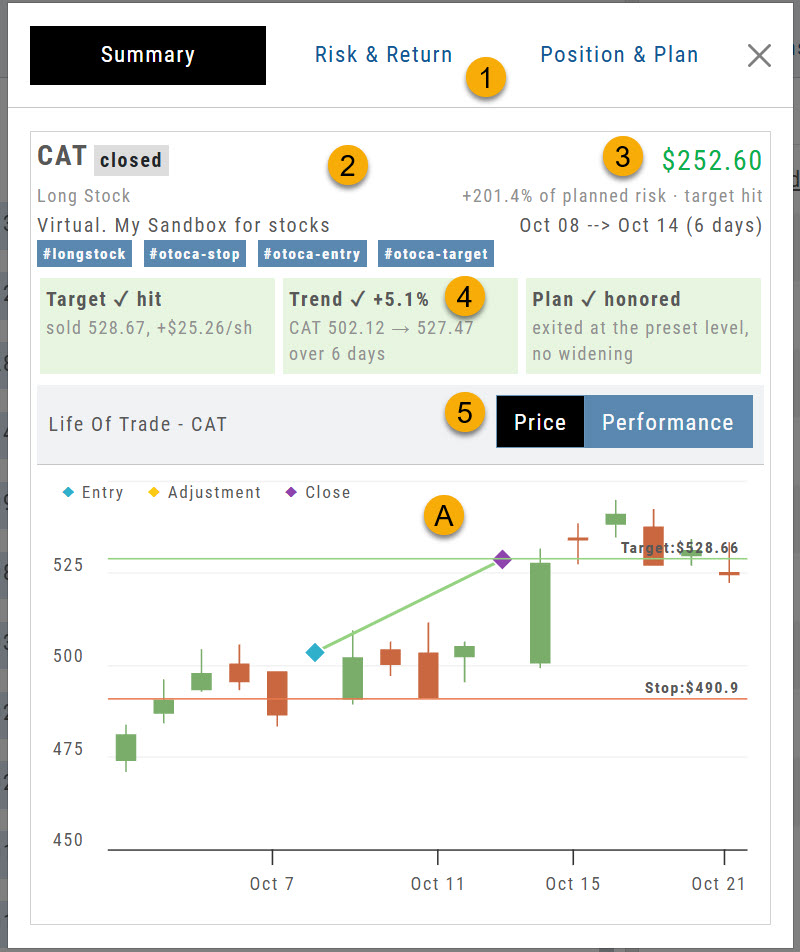
- Overview tabs — Summary, Risk & Return, Position & Plan.
- Trade summary — symbol, trade status, position, account and tags.
- Results — Profit/Loss, % of Target and duration of trade.
- Evaluation — color shows whether a factor contributed to or detracted from the trade.
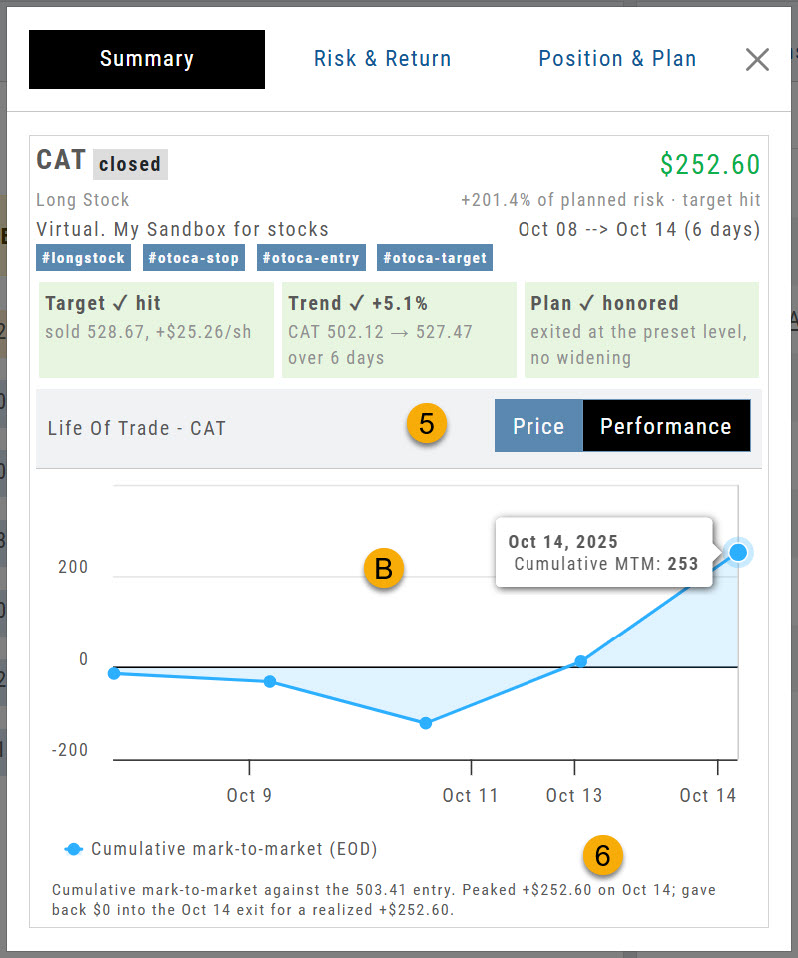
- Price / Performance — toggle between the two chart views.
- ACandlestick chart with position entry, adjustment and close — plus OCO Stop and Limit, if applicable.
- BCumulative activity across the trade duration.
- Summary of performance — a plain-language recap of the result.
Risk & Return
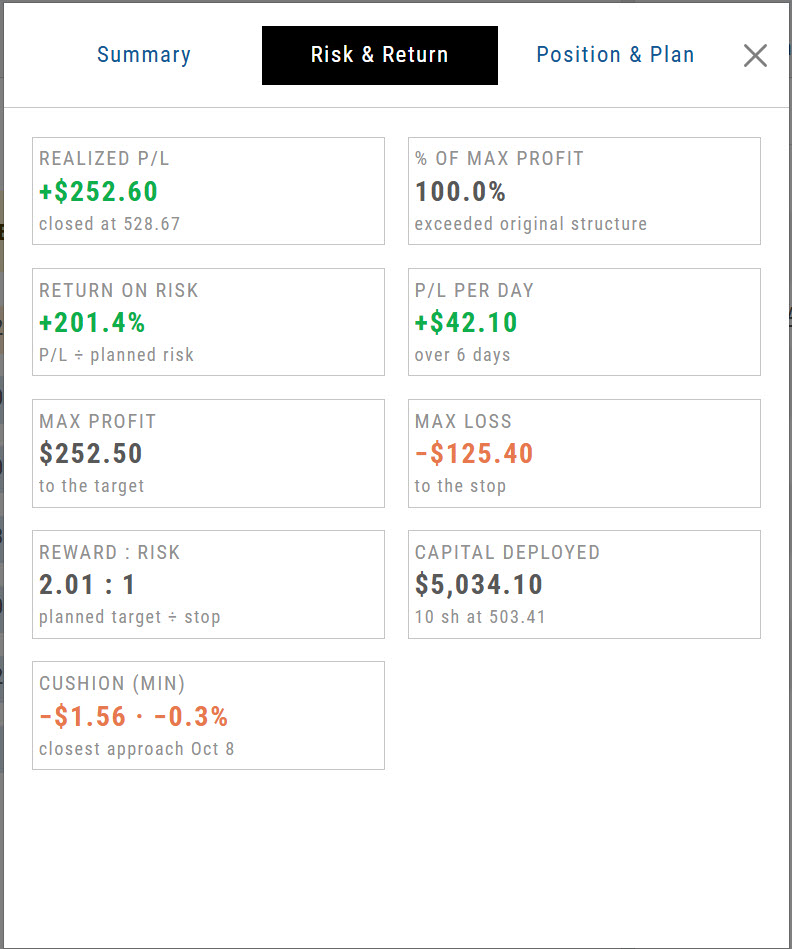
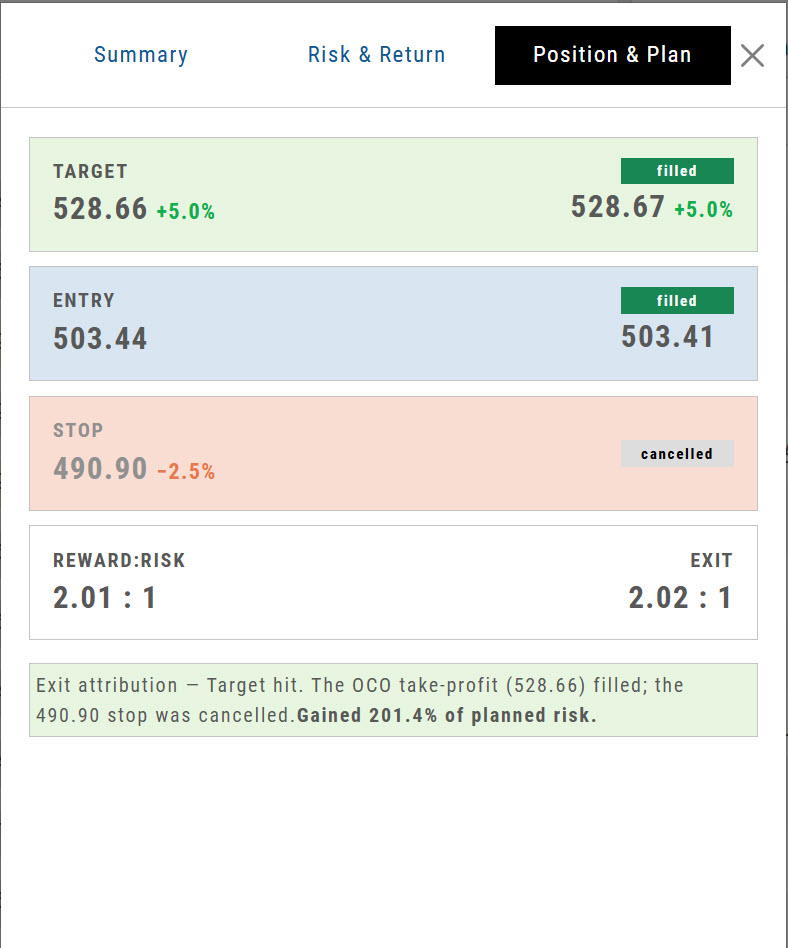
Risk & Return sets the plan against the outcome. In this bracket order, 10 shares filled at $503.41 — below the $503.44 order price. Six days later the $528.66 target was reached and the close executed at $528.67, and the $490.90 stop was cancelled automatically. A planned Reward/Risk of 2.01 came in at 2.02.
Position & Plan
Position & Plan breaks the result down line by line — here, a better entry, a better close, and a stop that never had to fill.
Options trades
Summary · Risk & Return · Greeks & IV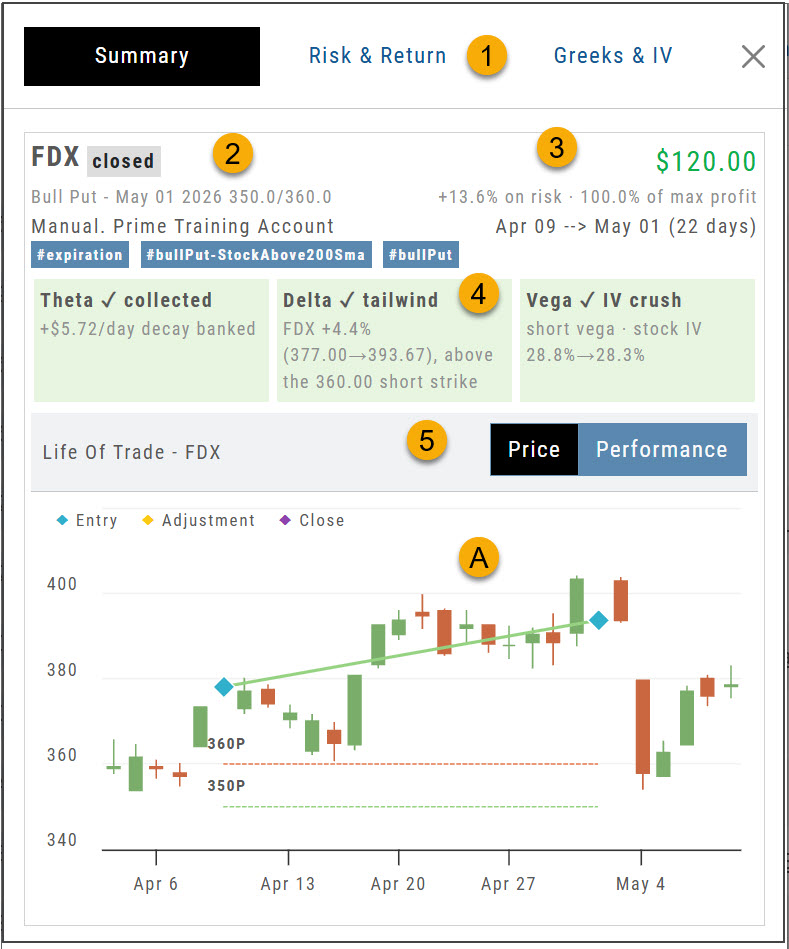
- Overview tabs — Summary, Risk & Return, Greeks & IV.
- Trade summary — symbol, trade status, position, account and tags.
- Results — Profit/Loss, % of Target and duration of trade.
- Evaluation — up to three primary drivers of the trade.
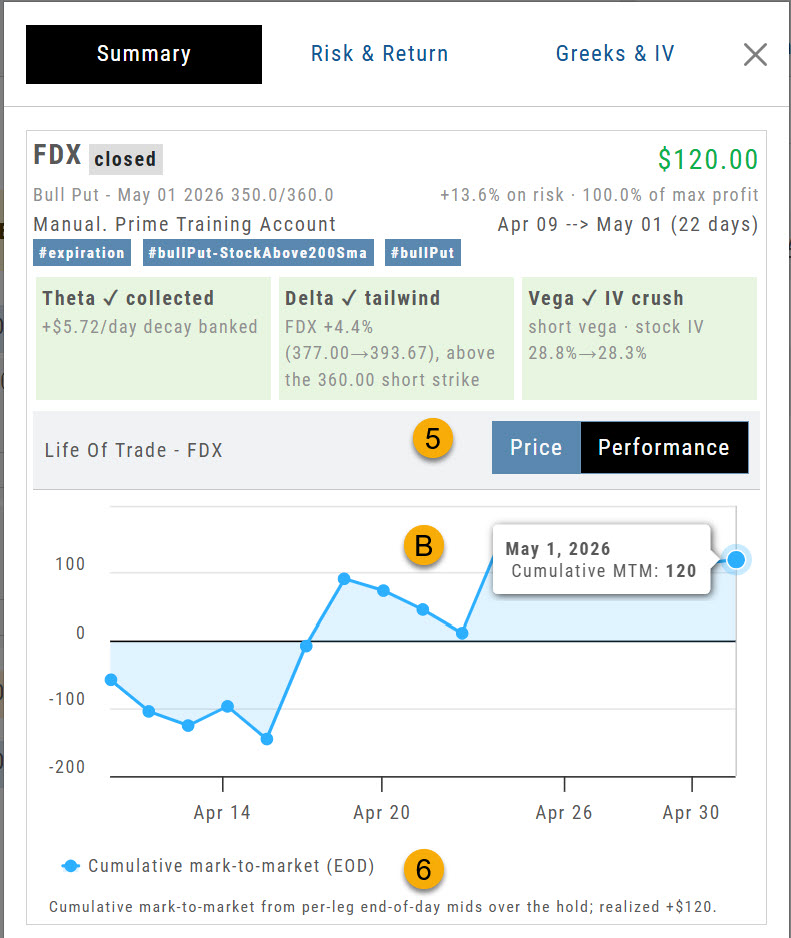
- Price / Performance — toggle between the two chart views.
- ACandlestick chart with position entry, adjustment and close.
- BCumulative activity across the trade duration.
- Summary of performance — a plain-language recap of the result.
Risk & Return
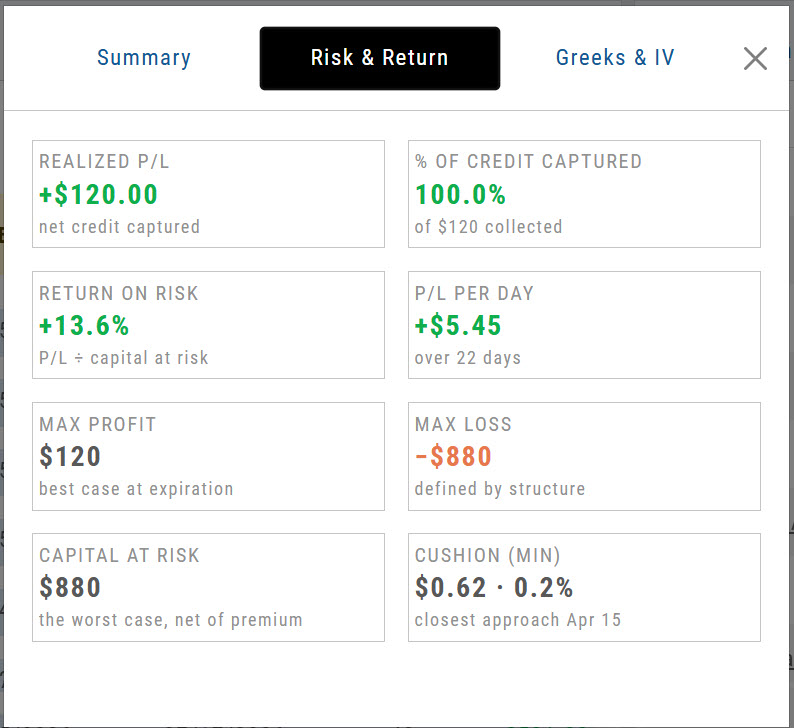
For this $10 bull put spread: max profit $120 against max risk $880, held 22 days for $5.45 per day and a 13.6% return on risk. Cushion shows how far below the break-even point the trade reached.
Greeks & IV
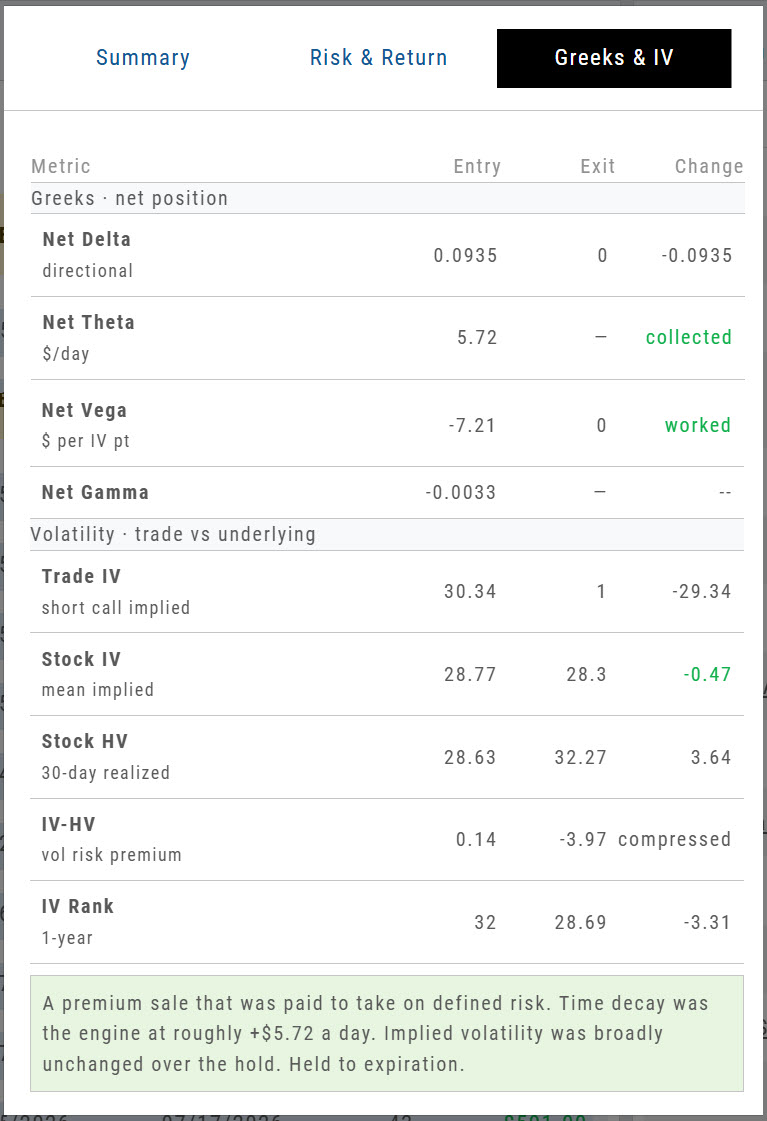
| Metric | What it tells you |
|---|---|
| Net Delta | Directional exposure — roughly what the position gains or loses per $1 move in the stock. |
| Net Theta | Premium in dollars per day that the position collects or pays for each day it is held. |
| Net Vega | What the position gains or loses per one-point change in implied volatility. |
| Net Gamma | How fast Delta itself moves as the stock moves — negative for credit spreads and short premium. |
| Trade IV | The implied volatility of your own legs — what you actually sold or bought. |
| Stock IV | The underlying's mean implied volatility, with 30-day historical volatility shown beneath it. |
| IV − HV | Volatility risk premium — how far implied sat above or below what the stock has actually been doing. |
| IV Rank | Where implied volatility sat within its own one-year range, 0–100. |
Strategy Metrics on the Option Chain
Build a multi-leg strategy on the Option Chain and the figures that decide whether it is worth taking are calculated as you go.
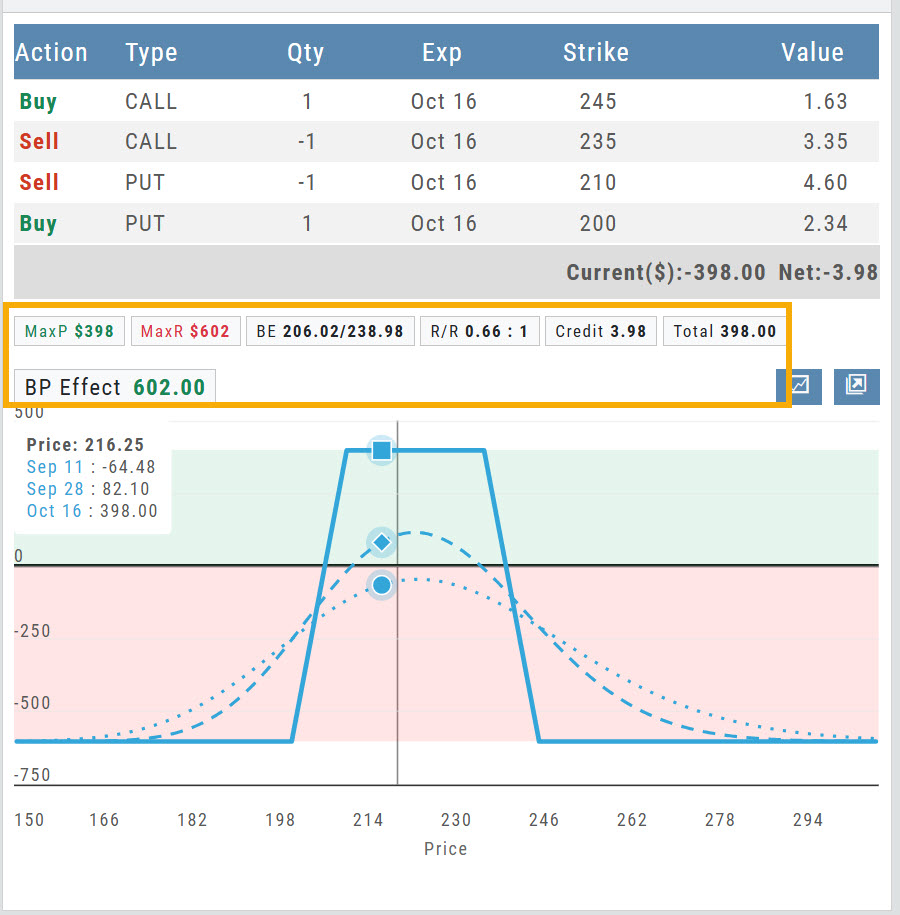
The callout bar sits directly beneath the legs and recalculates as you add, remove or reprice them — so you can weigh a structure before committing to it. Below it, the payoff diagram plots profit and loss across the price range, with a separate curve for each date between today and expiration.
What the callout bar reports
| Field | What it shows | This example |
|---|---|---|
| MaxP | Maximum profit — the most the position can make. | $398 |
| MaxR | Maximum risk — the most it can lose. | $602 |
| BE | Breakeven price on each wing, lower and upper. | 206.02 / 238.98 |
| R/R | Reward measured against risk. | 0.66 : 1 |
| Credit | Net premium received — shown as Debit when you pay to enter. | 3.98 |
| Total | Cost to enter the trade; here, the credit collected. | 398.00 |
| BP Effect | Buying power the position ties up while it is open. | 602.00 |
Reward/Risk on the Order Ticket
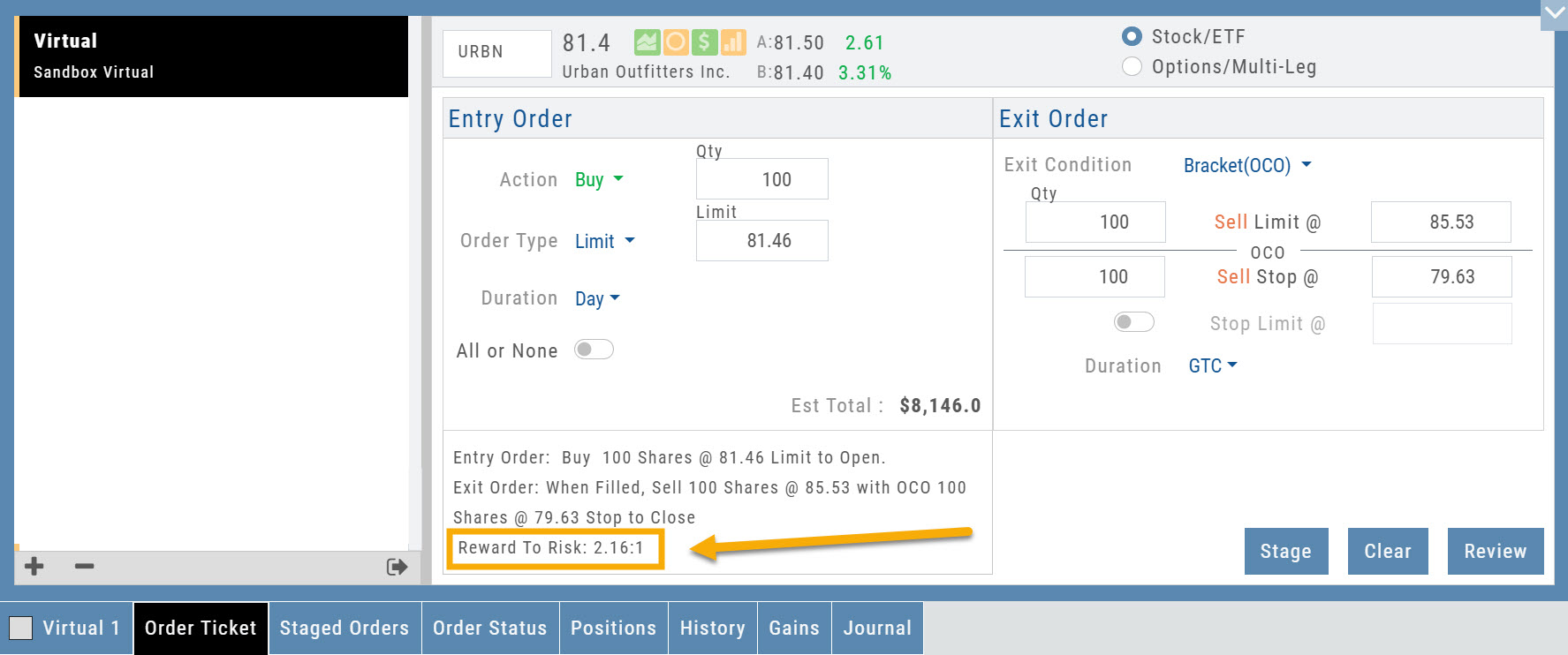
The Reward/Risk ratio you set from the chart now carries through to the Order Ticket, so it stays in view while you finalize the order.
Set it from the chart
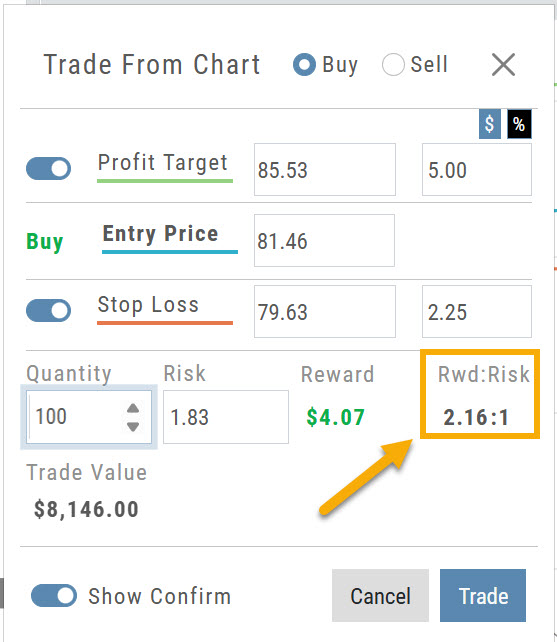
Click Trade from the chart to set up a Bracket Order. Set a Profit Target and Stop Loss around your entry price, and the dialog reports the resulting Risk, Reward and Rwd:Risk.
Then finalize on the ticket
The Order Ticket now carries that same figure as Reward To Risk, printed with the order summary — so it stays in front of you while you review, stage or submit, rather than being left behind on the chart.
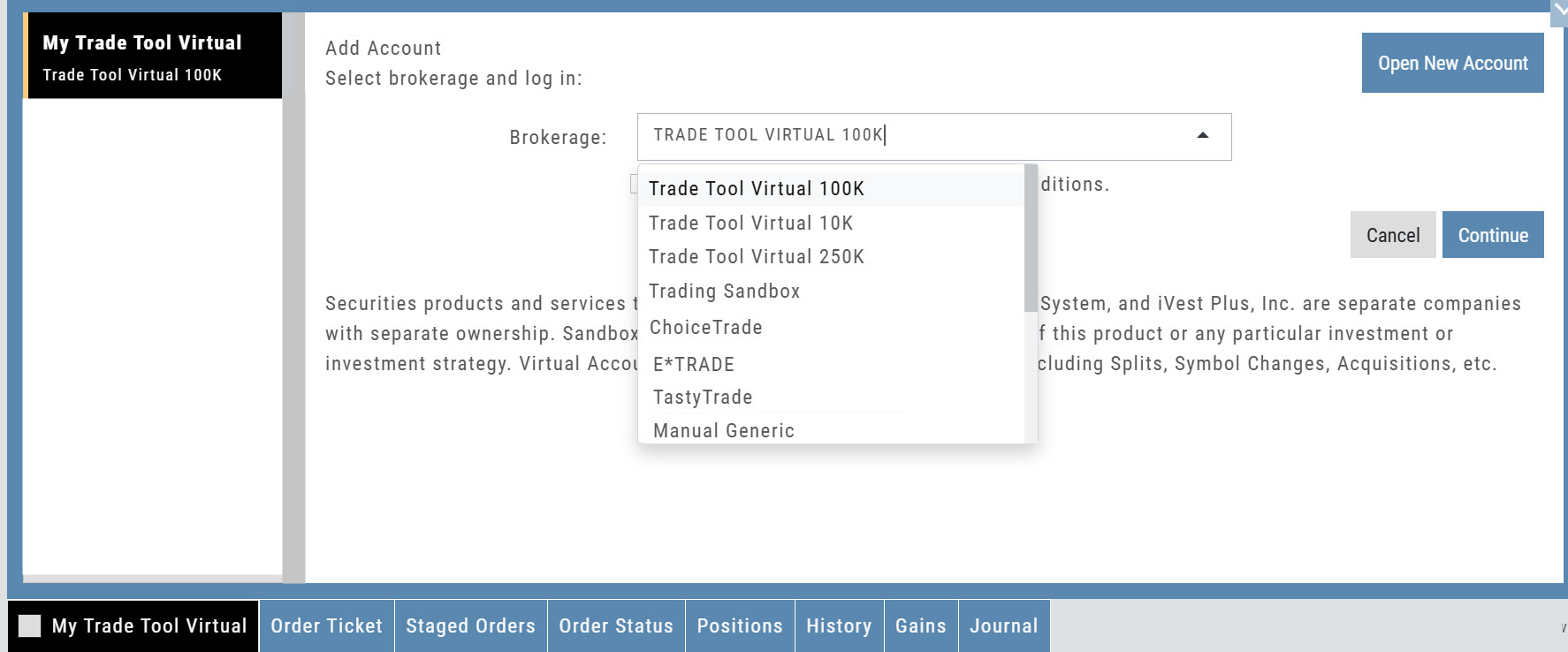
Almost Real Virtual Accounts
Built from the ground up to give you the most realistic experience possible.
Our new Virtual Accounts are designed to make practice trading more realistic — from the moment an order fills through expiration, assignment, dividends, and margin calculations. Whether you're learning the platform, testing a strategy, or practicing before putting real money at risk, your Virtual Account now gives you a much better picture of how trades can actually affect an account.
Available starting levels: $10k, $100k and $250k.
What's great about these accounts
- Realistic Fills — fast, market-based fills with potential price improvement, even on spreads.
- Accurate Margin & Buying Power — Reg-T margin and buying power are recalculated as your positions and orders change. Margin Interest is calculated at 10% for impact when used.
- Option Expiration & Assignment — options expire, exercise, and assign as they would in a live account, including cash-settled index options.
- Dividends — eligible positions now reflect dividend activity.
- Realistic Account Outcomes — margin calls, reduced buying power, and negative equity can occur when market conditions warrant them.
Change Log
- FixedTrend Drawing Tool — adjusting a drawn trend line.
- FixedRectangle Annotation — functionality restored.
- FixedLine Cloning — thickness now carries through to the cloned line.
- FixedPrice Slices — Tab key behavior.
- FixedScan Filters — filters now clear.
- ChangedBracket Orders — now function and display as a single order on the chart.
26-06 Release- Bid/Ask Percent Data
Bid/Ask Spread – Premium Percentage
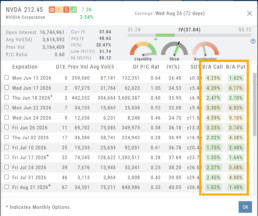
What do these columns represent?
The values represent the Bid/Ask spread percentage for the At-The-Money strike for each Expiration.
The percentage background color ranges from green, gray, yellow, and red, which represents the most liquidity to least for that ATM Expiration
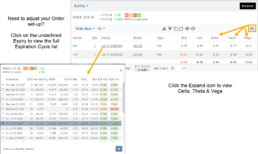
Spread Trade example:
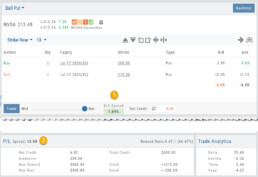
Bull Put
1. The negotiation slider dynamically calculates the percentage of the position premium (debit or credit) that the bid/ask spread comprises when the slider is moved between the Mid (0.00%) and Natural (Max %).
2. This value confirms the Spread value. In this example, the value is 15. The strikes are 200/215:
Multi-Leg Example:
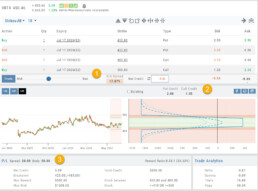
Iron Condor
1. The negotiation slider dynamically calculates the percentage of the position premium (debit or credit) that the bid/ask spread comprises when the slider is moved between the Mid (0.00%) and Natural (Max %).
2. The Put/Call Premium is calculated and tied to the “Bid”.
3. The Outer legs and Body spread values.
Change Log
- ADUR display resolved
- Repaired snap quote issue with Tradier
- SPLG>SPYM display data corrected
26-06 Release Notes: Bid/Ask data
Bid/Ask Spread – Premium Percentage
What do these columns represent?
The values represent the Bid/Ask spread percentage for the At-The-Money strike for each Expiration.
The percentage background color ranges from green, gray, yellow, and red, which represents the most liquidity to least for that ATM Expiration
Change Log
- ADUR display resolved
- Repaired snap quote issue with Tradier
- SPLG>SPYM display issue corrected
26-03 Release Notes: Journal Auto-Reconcile, Extended Trading, New Charting Indicators
Platform Release Summary
This release helps you see more of the market, spend less time tracking trades, and apply your strategies with greater confidence—with extended-hours charting, automated journal reconciliation, and new technical indicators.
Journal Auto-Reconcile
The auto-reconciliation in the Trade Journal aligns trades and results—allowing users to focus on analyzing performance instead of managing data. Since consistent review is key to improving as a trader, this feature makes the process significantly easier and more accurate
Start in the Reconcile View of the Journal:
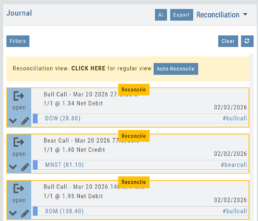
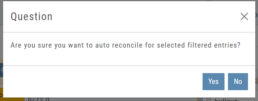
Next, click the  button.
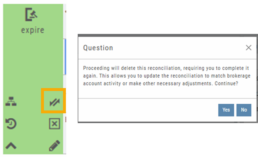
The dialog box to the left will appear:
Click “Yes”
The display will list the resulting action for each expiration.
You can scroll to review.
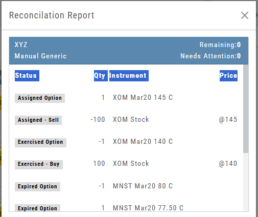
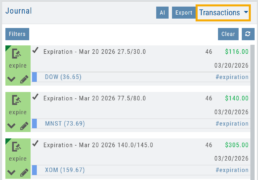
The Reconcile view will clear and all Journal Tabs will update to reflect the action resulting from each Expiration.
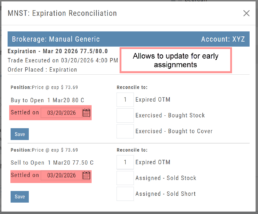
The arrow icon (shown) allows editing – including early assignment of options.
Note: This icon will *only* appear on Journal Tabs where the function is permitted.
Example: Stock Positions will not display the icon.
Extended Trading Hours
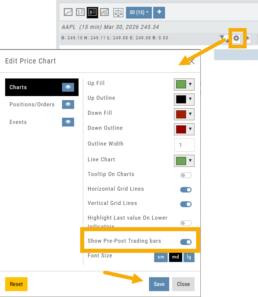
Pre and Post-Market activity can be displayed on Intra-Day charts:
First, click on the Gear icon as shown.
Then, toggle “Show Pre-Post Trading bars” to the On position, as shown.
Finally, “Save“.
Additions: New Charting Indicators
Chande Momentum Indicator (CMO)
Measures the strength of price movement by evaluating both gains and losses, providing a more balanced view than traditional oscillators.
- Above +50: Indicates overbought conditions (potential selling opportunity)
- Below -50: Indicates oversold conditions (potential buying opportunity)
Summary: Helps identify when price movement may be overextended and due for a reversal.
Chaikin Money Flow (CMF)
An oscillator measuring buying and selling pressure by analyzing money flow volume over a set period, rather than cumulatively.
- Positive values: Indicate buying pressure (accumulation)
- Negative values: Indicate selling pressure (distribution)
- Default setting: 20-period (typically 20 days)
Summary: Helps identify whether money is flowing into or out of a security over a defined timeframe.
Directional Movement Index (DMI)
A trend indicator that measures both the direction and strength of a trend using three lines: ADX, +DI, and -DI.
- +DI above -DI: Indicates an uptrend
- -DI above +DI: Indicates a downtrend
- ADX: Measures trend strength (regardless of direction)
- Default setting: 14-period
Summary: Helps identify trend direction and the trend’s strength
Ultimate Oscillator
A momentum indicator that combines three timeframes to provide a more balanced view of market strength and reduce false signals.
- Higher values: Indicate stronger buying pressure
- Lower values: Indicate stronger selling pressure
- Used to identify overbought/oversold conditions and potential trend reversals
Summary: Helps confirm momentum and spot potential turning points with greater reliability.
Change Log
- Improve OHLC appearance
- Repair drawing annotations on extended chart
- Reconciliation mode functionality fixed
26-01 Release Notes: Bracket Order Adjustment, Journal Reports, Show Confirmation
Adjust Limit and/or Stop Orders from the Chart
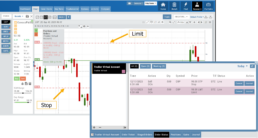
- Click on the Limit (or Stop) Order Dashed Line
- The Modify Order Price dialog box will appear
- Either move the dashed line to the new position, this will temporarily show up as a solid line. OR enter the new price in the dialog box.
- Click Modify
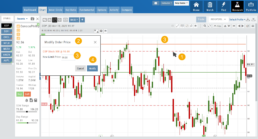
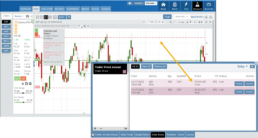
Once modified, the Limit order becomes a dashed line at the updated price.

Journal Reports
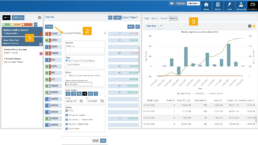
Journal Reports transform your trading data into visual insights that highlight performance trends, behaviors, and outcomes at a glance. With intuitive charts and summaries, you can easily evaluate results, refine strategies, and build more consistent trading habits.
Show Order Status (Go to Order Ticket)
When trading from the Chart (OCO orders), you can elect to Show Confirmation – or not.
Toggling “On” will take you to the Order Ticket to review and submit your Order to the supporting brokerage.
The Order Ticket tab allows you to further adjust and even Stage the Order.
Once reviewed and submitted, you’ll get a confirmation the order was submitted, as shown here:
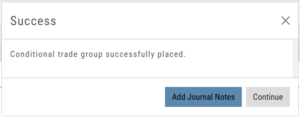
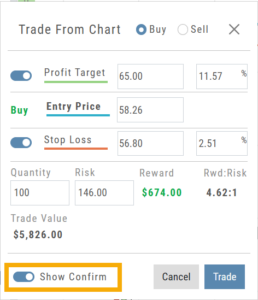
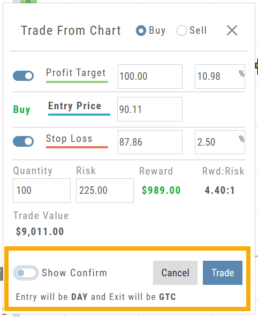
Toggling “Show Confirm” to Off, will bypass the Order Ticket window and convert the “Trade from the Charts” action to an Order Ticket itself.
Notice: The Entry is a Day Order, the Exit is a GTC order
Clicking “Submit” will send the order directly to the supporting brokerage.
Since the Order Ticket is bypassed, additional adjustments or Staging is not permitted when “Show Confirm” is in the “off” position.
Once submitted, as with “Show Confirm” activated, you’ll see this notice:
Platform Features Release: Additional Features/Adjustments to Streamline Functionality
Announcing the latest Release of feature and functionality additions and enhancements to the trading platform to streamline/improve functionality.
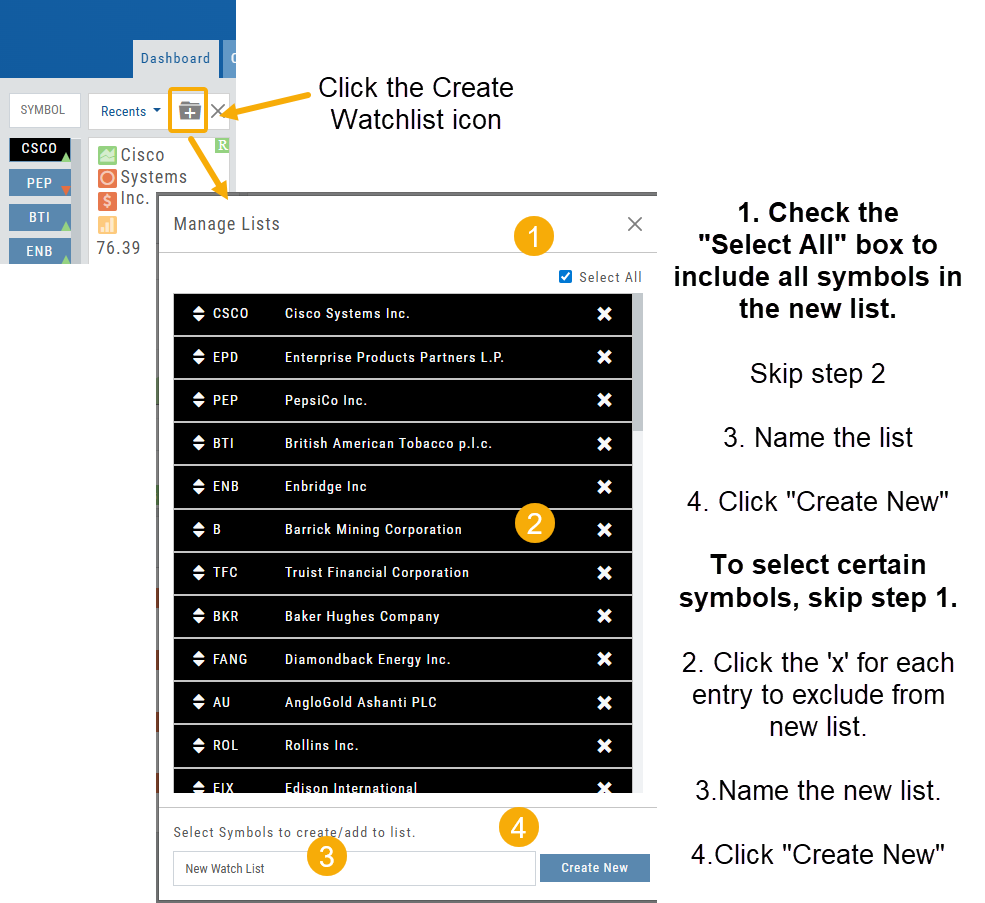
Build a Watch List from “Recent” List
Build a new Watchlist directly from the “Recent” list in Research.
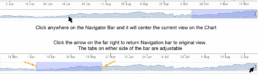
Navigation Bar
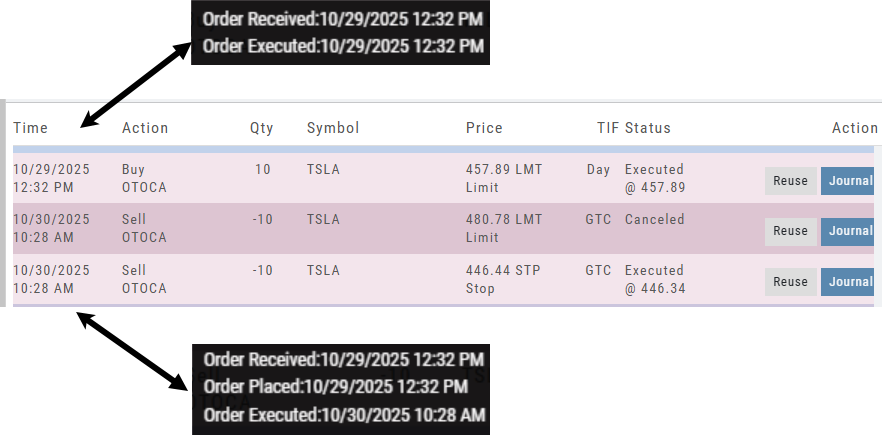
Order Status Time Stamp
Hover your cursor over the Order’s Date/Time info to display the Order’s activity Time Stamp.
Other Additions
- Enter a symbol, and it will appear in the symbol box. This works on any of the Research tabs.
- Adding a symbol when Creating a new Watchlist automatically adds to the list. The “Add” button has been removed.
Change Log
- Corrected “Close” action from Staged Trade
- Trailing % display corrected
- Renamed tooltip from “Add Watchlist” to “Create/Delete” vs. “Add/Delete”
Platform Features Release: Sandbox Trading Account, Order Status Filter & more
Announcing the latest Release of feature and functionality additions and enhancements to the trading platform to assist the investment/trading decision process.
Trading Sandbox Virtual Account
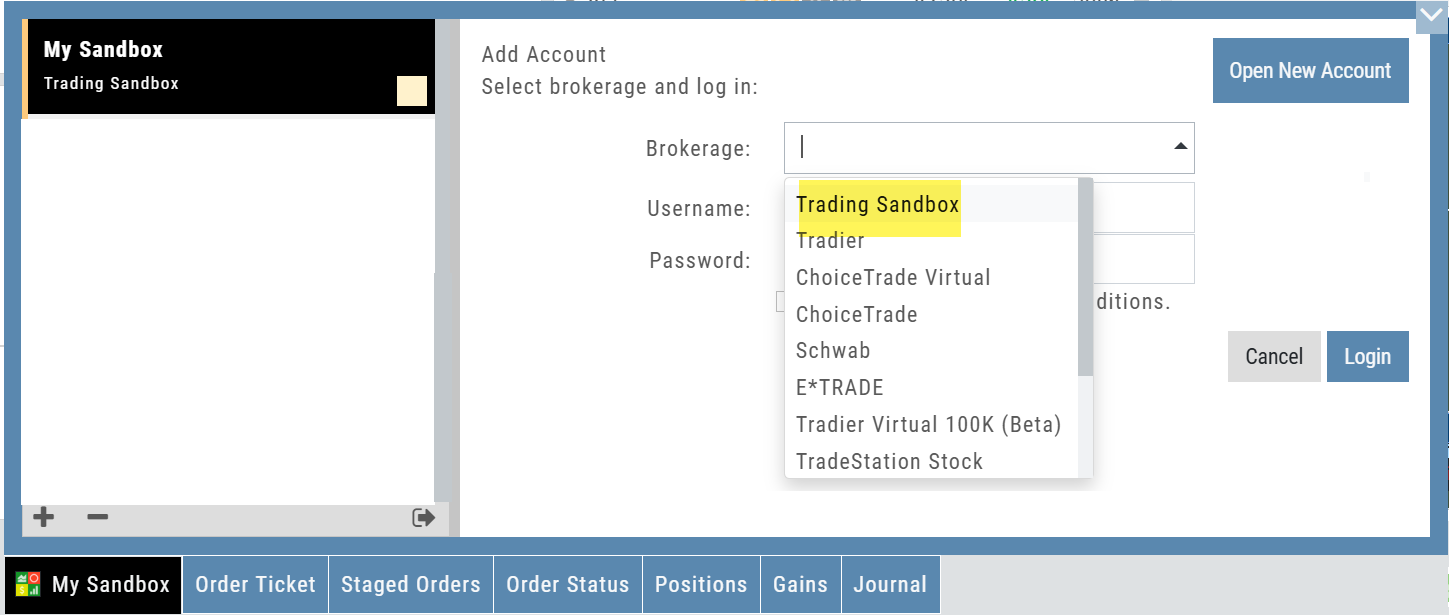
Announcing a new Virtual Account with fast execution, accurate tracking, and reliability you can depend on.
Unlike traditional broker-provided virtual accounts, the Sandbox is not bound by brokerage margin rules or limitations, giving you more freedom to practice and test strategies.
The Sandbox uses delayed market data. In addition to fast, reliable trade execution and accurate trade capture, it also handles options correctly, supports Conditional Orders for stocks, full Journal Support, and more!
Order Status Filter Buttons
The Order Status Tab filter buttons make it easy to locate previous orders

- All – Everything in the time period is shown on the tab (Today, 1 Week, 1 Month, etc.).
- Open- Orders that have not yet executed as an active Trade/Position – includes Waiting Conditional orders.
- Working – Bracket orders where the underlying stock order is an active position (Stop/Limit orders). Excludes Waiting Conditional orders.
- Filled – Executed orders whether to open/modify/close
- Canceled – Includes both manually canceled as well as day orders that did not get filled prior to the end of the Market Day
OCO Journal Tagging
OCO Orders are automatically tagged in the Journal.
Once the Stock Order is Executed (it is an active Position), the Limit and Stop orders are Live (active Orders for the duration selected: Day or GTC.)
If/when the stock hits the Limit price, that order will execute, and the Stop order will be canceled. The Journal tab will be green and display a Gain/Profit.
-OR-
If/when the stock hits the Stop price, that order will execute and the Limit order will be canceled. The Journal tab will be red and display a Loss.
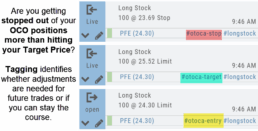
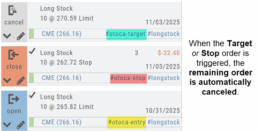
**Note: Past Conditional trades will be tagged as “otoca-entry”, “otoca-target” and “otoca-stop”.
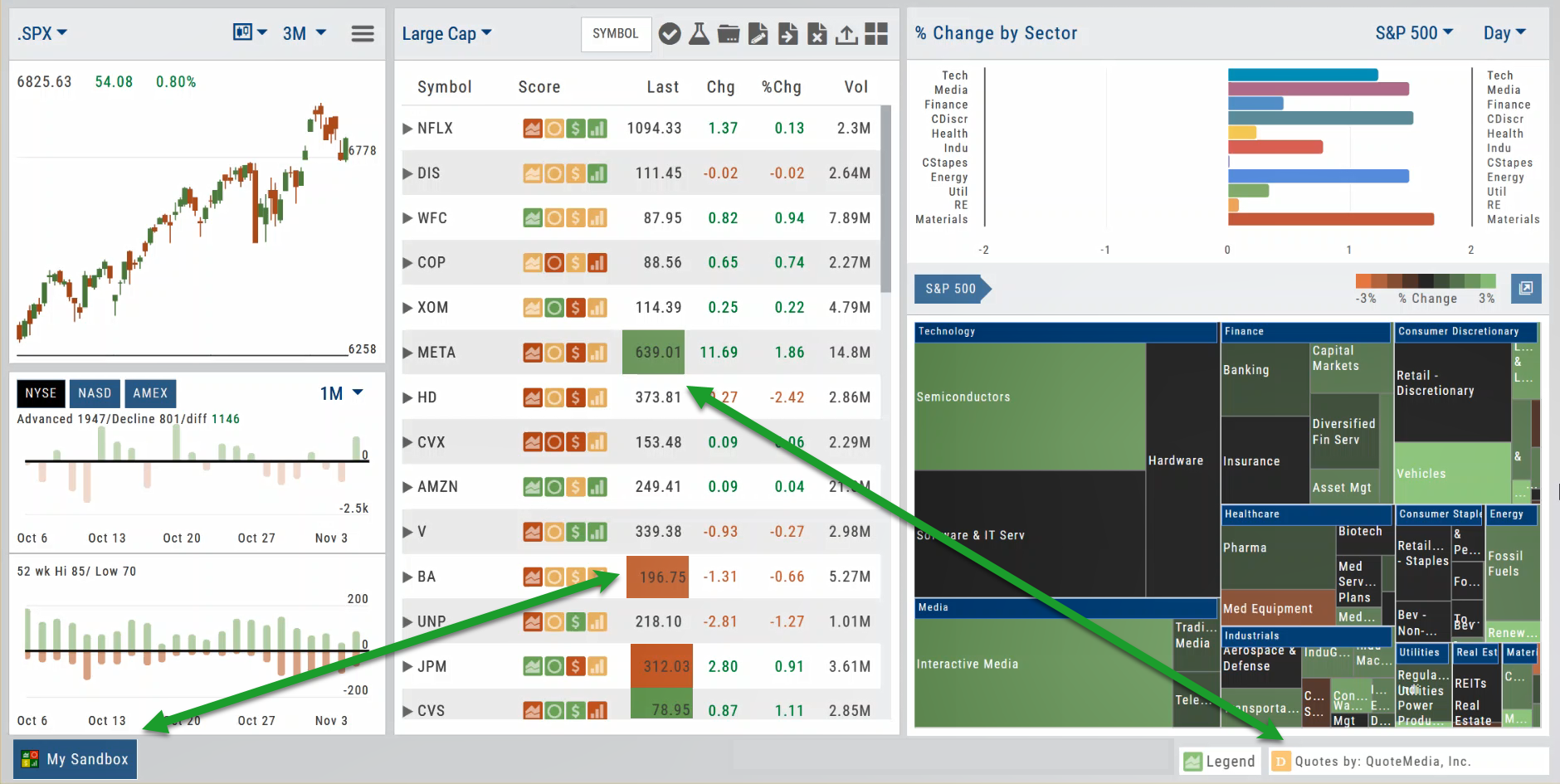
Delayed Streaming Quotes
Delayed Streaming Quotes will appear when you have a Virtual or Manual Account activated.
Click on the account tab so that it appears on the bottom left corner of your screen.
Extend Fibonacci Retracements on Charts
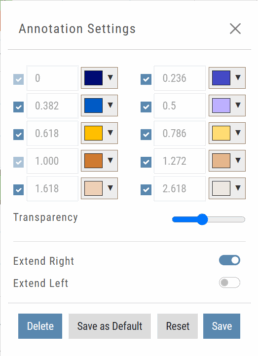
Fibonacci retracements can be extended right and/or left on the chart.
Click an existing Fibonacci annotation, then use the toggle switches to adjust it.
Don’t forget to “Save”
Note: Extend Right/Left can be edited/saved individually, not Set As Default.
Chart crosshairs
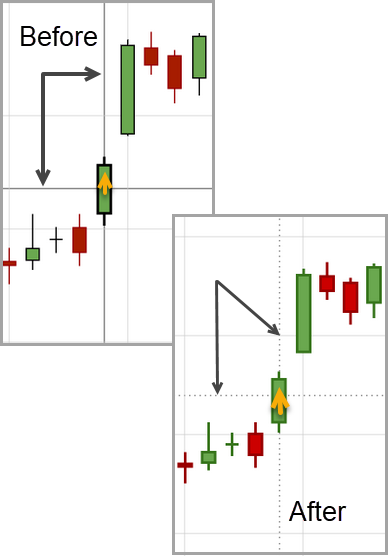
The cursor crosshairs on the chart have been adjusted so they no longer obscure the candlestick wicks
Other Additions
- Set “GTC” as default duration for Exit Order on Trade Ticket
- Modify TTM Squeeze formula to follow industry
- Auto-select Option Cycles for existing Order(s)
Change Log
- Resolved Screener glitch to move candidates to selected watch list
Platform Features Release: New Zoom Functionality, Chart Panning
Announcing the latest Release of feature and functionality additions and enhancements to the trading platform to assist the investment/trading decision process.
New Zoom Functionality
To activate Zoom, click on the Zoom button has been added to the icon toolbar:

- Once activated, the button changes color.
- Click/drag the mouse/cursor over the area of study.
- A “Reset Zoom” button will display when you want to restore the view.
Chart Panning Functionality
Click/drag now pans the time period/price range on the chart – when dragging your mouse/cursor either right/left
Other Additions
- “Choppiness Index” Chart Lower Indictor added
- “Are You Sure You Want To Cancel This Order?” added on Order Status tab
- Clicking on “Quotes By” box (lower right corner) will display source of quotes
Change Log
- Reuse .XSP and .SPX order functionality restored
- Trading Block OTM trade error fixed
- Schwab recognizes BRK.B now
- Resolved Liquidity Range in Screener