
26-10-22 Release Notes: Journal & Chart Enhancements/Platform fixes
TradeTool Platform
Release Notes
Trade Journal Upgrades
The Journal AI system has been substantially improved and now offers more in-depth analysis. Select one or more accounts, filter your timeframe, click AI, and go!
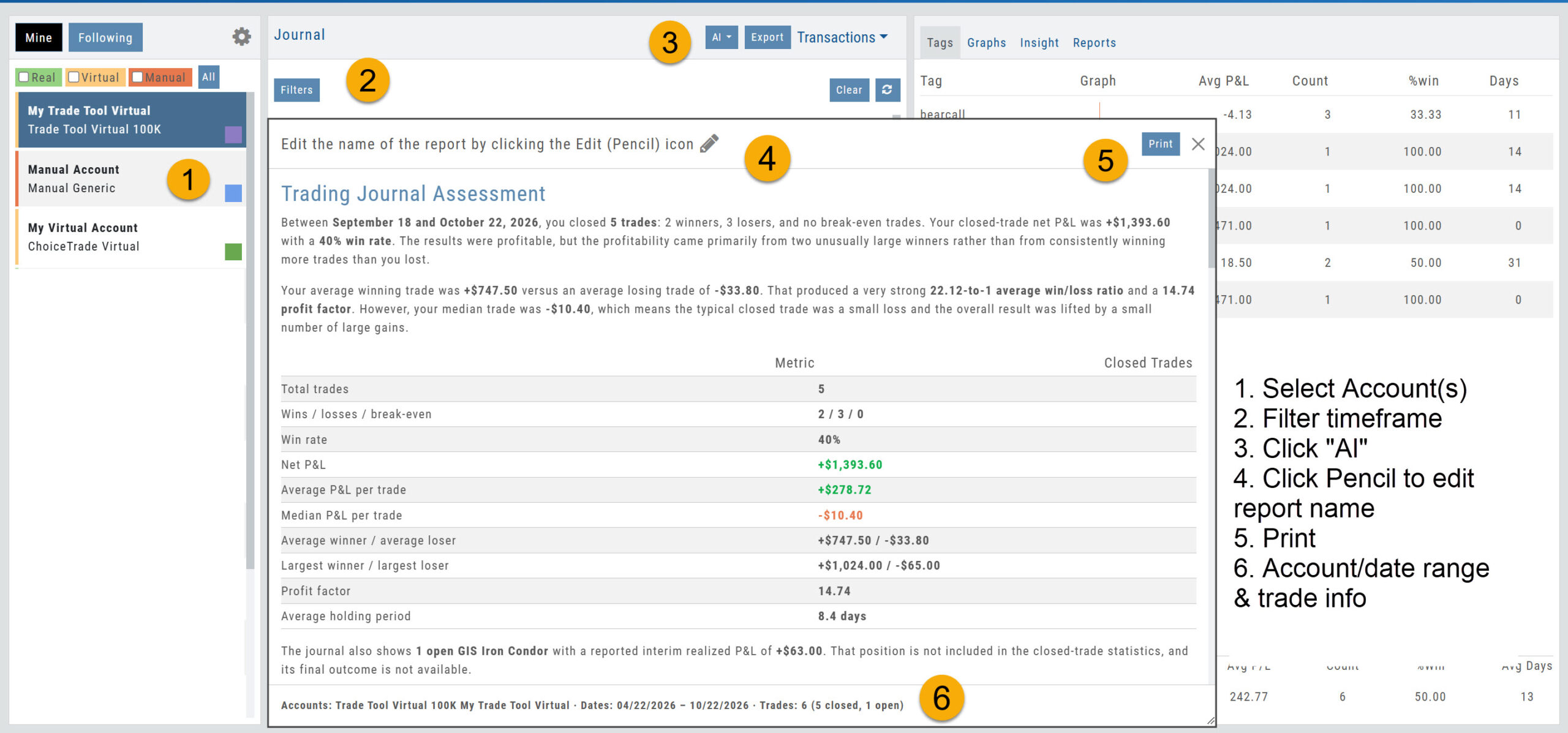
The resulting report provides
- An overall Assessment
- What's working / What needs improvement
- Strategy Analysis
- Risk & Trade Management
- Patterns and Observations
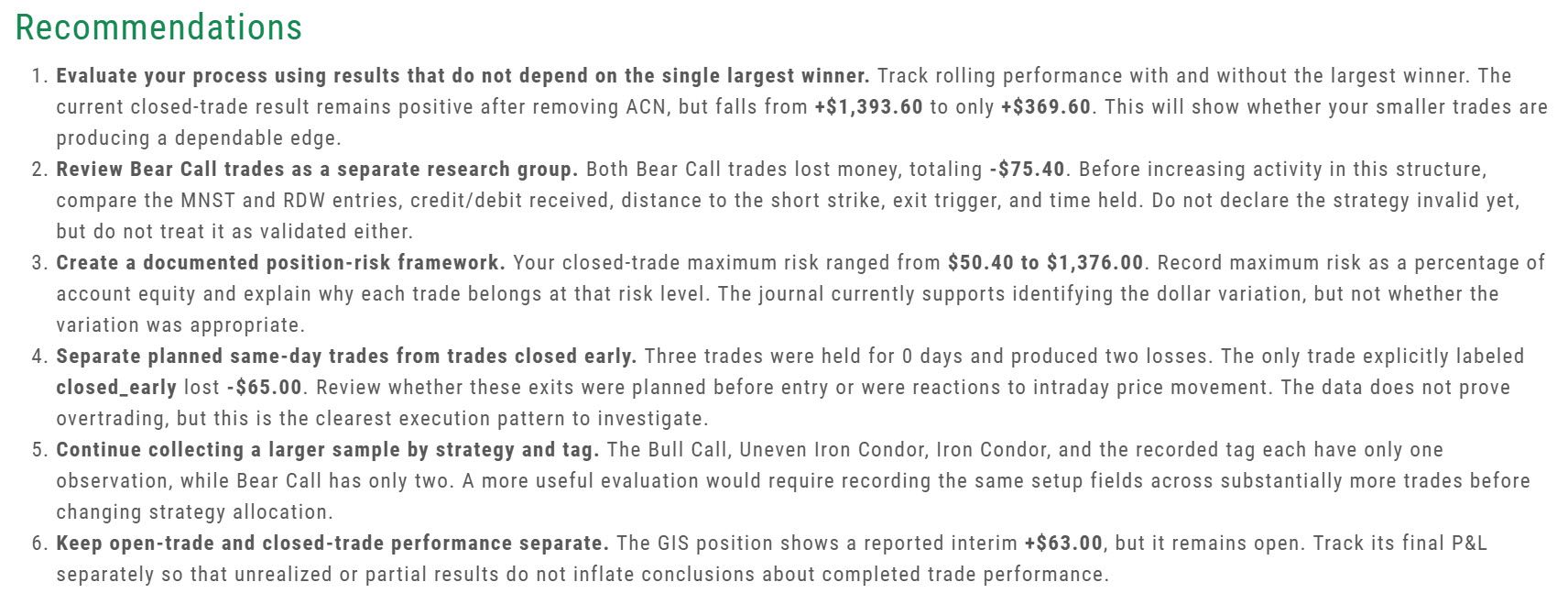
- Recommendations for improvement
Trade From Chart
Trade From Chart lets you set up a trade by clicking on the price chart.
- Smarter default stop. The suggested stop is based on the ATR (Average True Range), which measures a stock's usual price movement. The stop is set 1.5 times the ATR away from your entry price, so a stock with wider swings gets a wider stop, allowing for normal day-to-day moves. The target and stop are based on the chart interval you are viewing, using the last 14 bars: on a daily chart that's 14 days, and on a 5-minute chart it's 14 five-minute bars (70 minutes).
- Your levels stay in view. If either the Target Price or Stop Price is above or below the current chart view, the chart 'zooms' out automatically to include both.
- New "Tick" option. Set Targets and Stops by $, %, and now "Ticks" (the smallest amount a stock can move) in 1-cent increments.
Whichever Range choice you pick ($, %, or T) now stays selected (sticky).
Chart Improvements
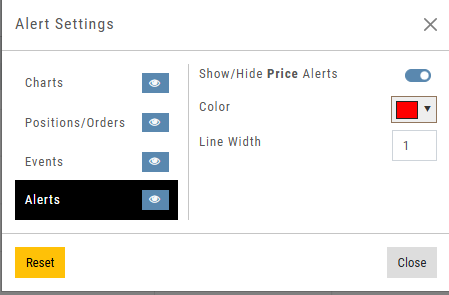
- Alerts on the chart. Price alerts you've set now show as lines on the chart, so you can see where they will go off. In addition, you can turn this feature on or off as you wish. This can be found in Chart Settings under Alerts.
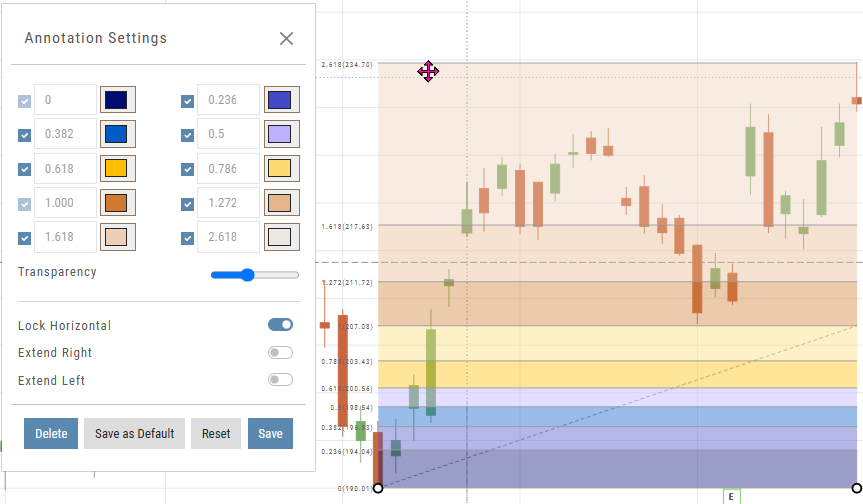
- Fibonacci "Lock Horizontal" switch. The Fibonacci tool draws lines at key levels where a price often pauses or turns around. "Lock Horizontal" keeps the tool level while you draw, making it easier to place.
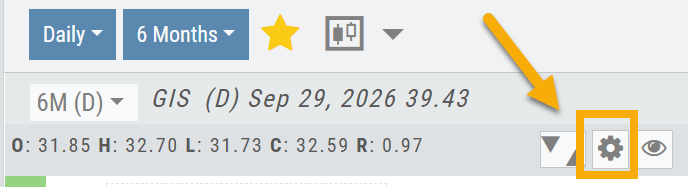
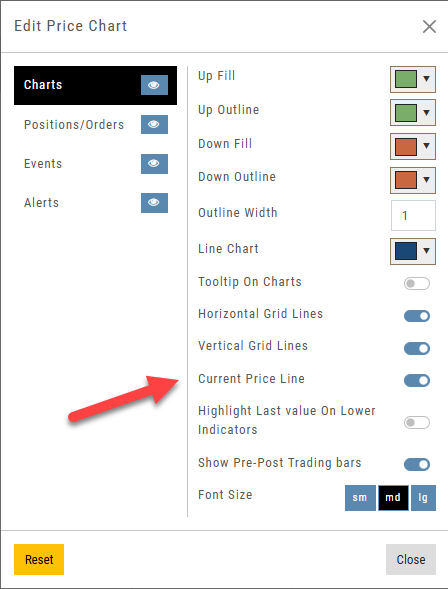
- Hide the current price line. The Price Chart controls, accessed as shown below, allow you to hide the current price line across the chart. The current price label still appears on the right edge of the chart.
Resetting Your Practice (Virtual) Account
- Resetting the Balance. This refills your cash and updates your Account Value. Any open positions are unaffected. Note: Your total Account Value may not match the reset amount if you have open positions.
Change Log
- AddedDonchian Channel — description added.
- FixedReward/Risk ratio — corrected for limit orders.
- ImprovedPractice Account — when either the Bid or Ask is $0.00, the system now treats it as $0.01 so you aren't stuck in a trade.
- Added"Cash Balance" field — the Account Summary tab shows your cash balance: the money not yet in a trade.
- ChangedStrategy Templates — error message reworded for clarity.
26-09-27 Release Notes: Enhancements/Fixes
TradeTool Platform
Release Notes
Improvements
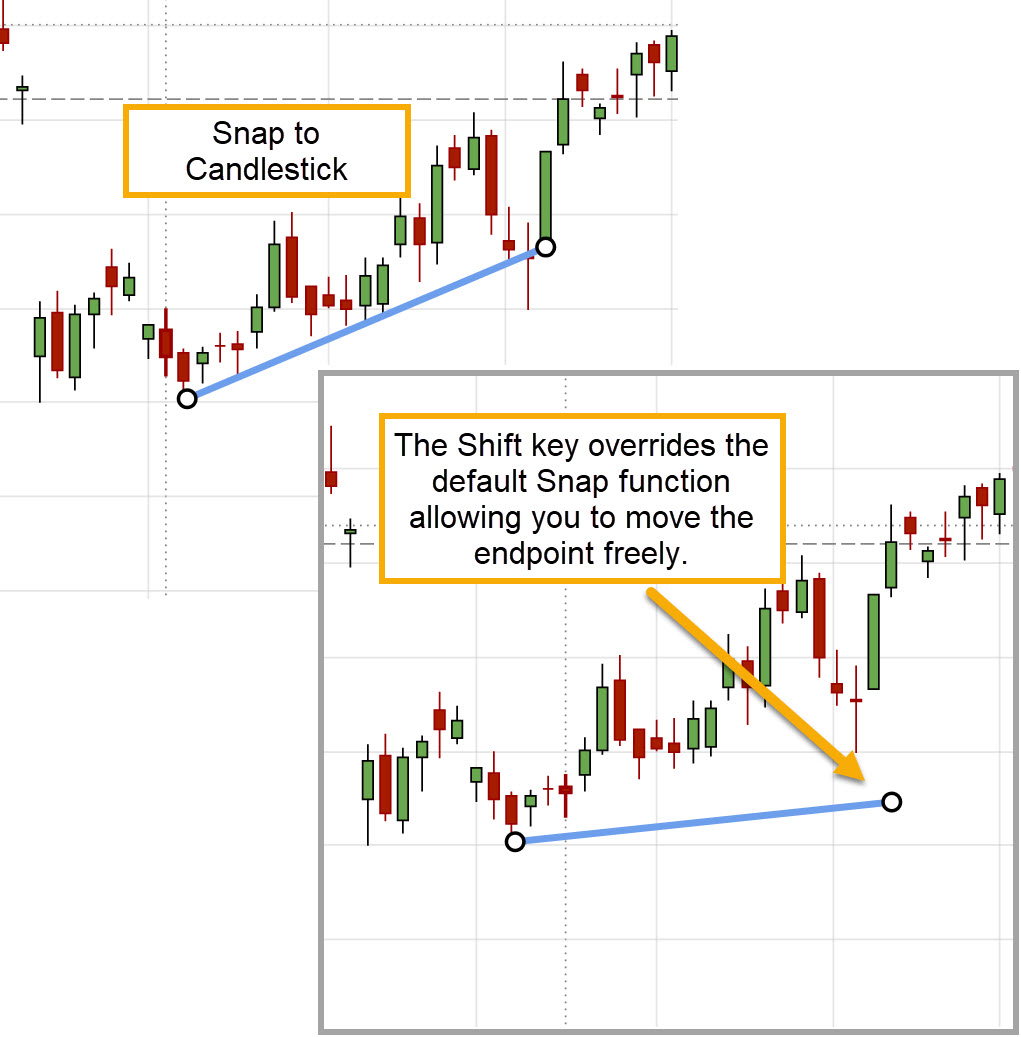
Shift Key Overrides Snapping to Candle
Hold the Shift key to override lines/annotations snapping to candle on the Chart.
Trade From The Chart
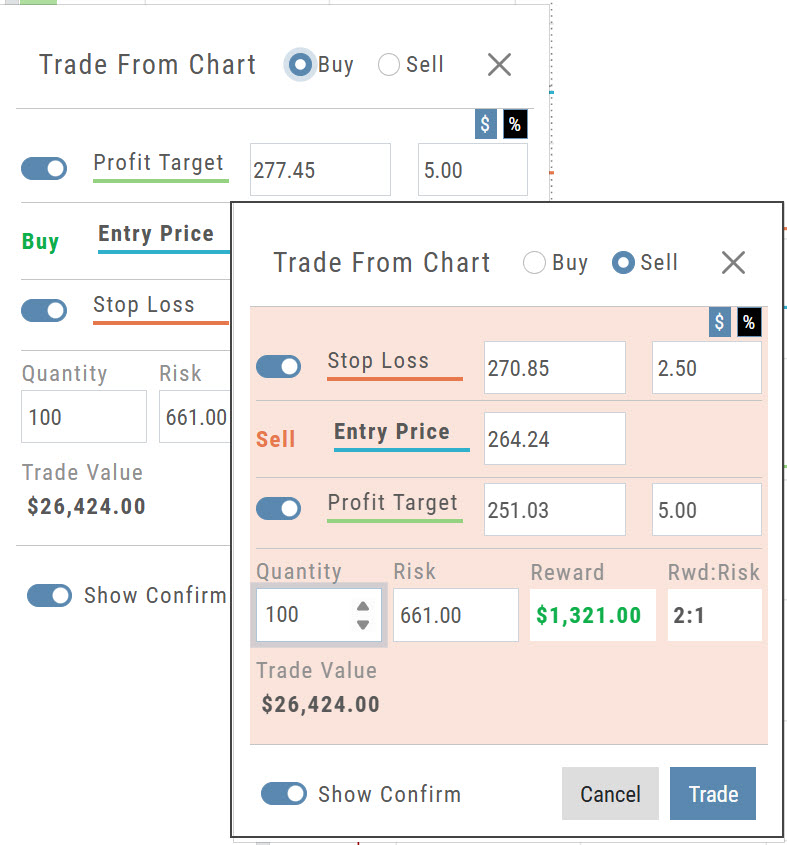
Bracket/OCO order setup now differentiates between Buying and Selling, with a red display for Sell activity.
- Buy keeps the standard display, with the Profit Target above the Entry Price and the Stop Loss below it.
- Sell switches to a red display, with the Stop Loss above the Entry Price and the Profit Target below it.
Percentage of Planned Risk
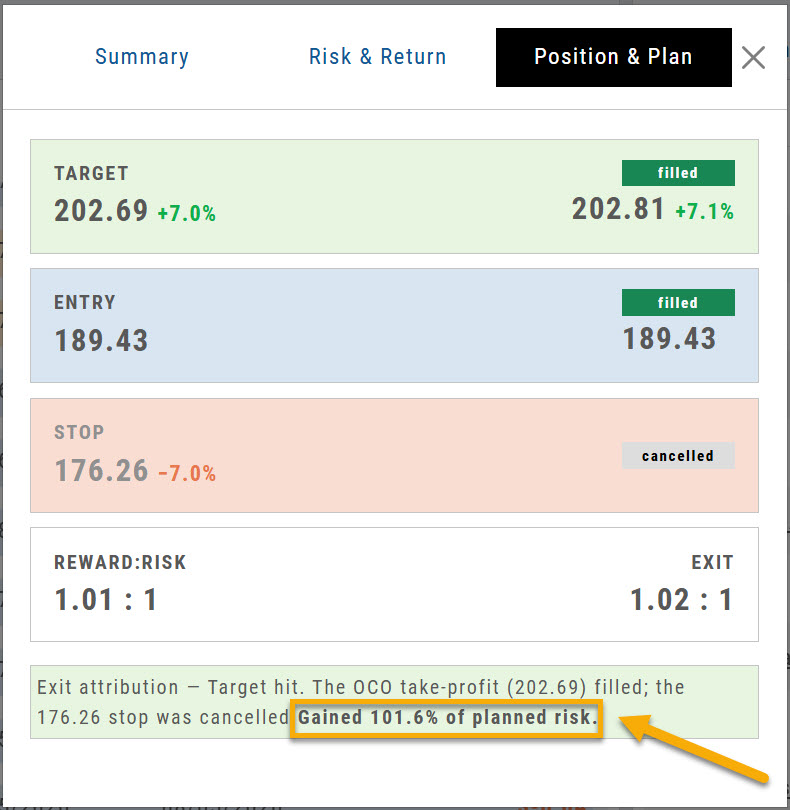
Percentage of Planned Risk has been added to the Journal trade results, as shown.
For example, the trade on the right hit its target. The exit attribution now reads Gained 101.6% of planned risk, which shows how the result compares to the amount you planned to risk on the trade.
Price Chart Changes Are Auto-Saved
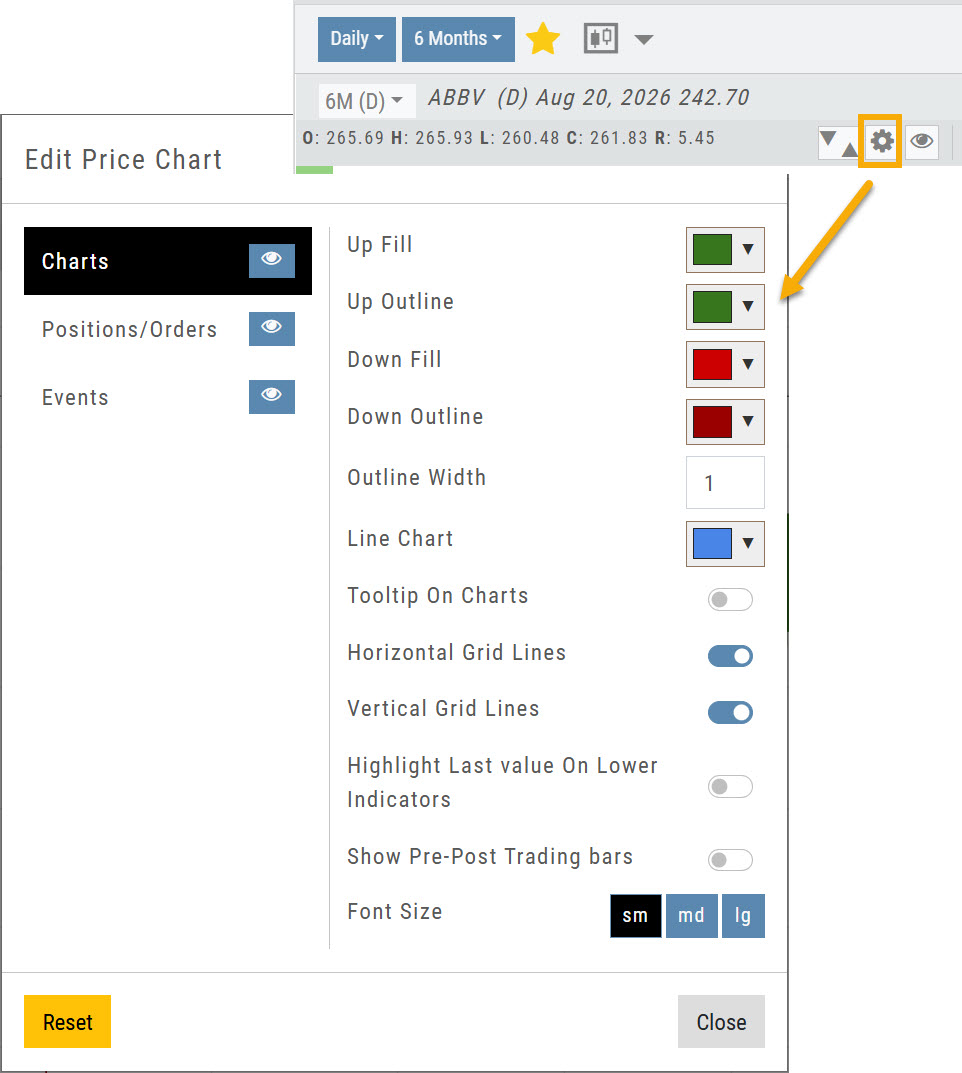
Changes to the Price Chart settings are now saved automatically.
Click the gear icon to open Edit Price Chart, make any changes, then click Close. Your changes stay in place until you change them again.
Manage Positions, Orders & Staged Orders Display on the Chart
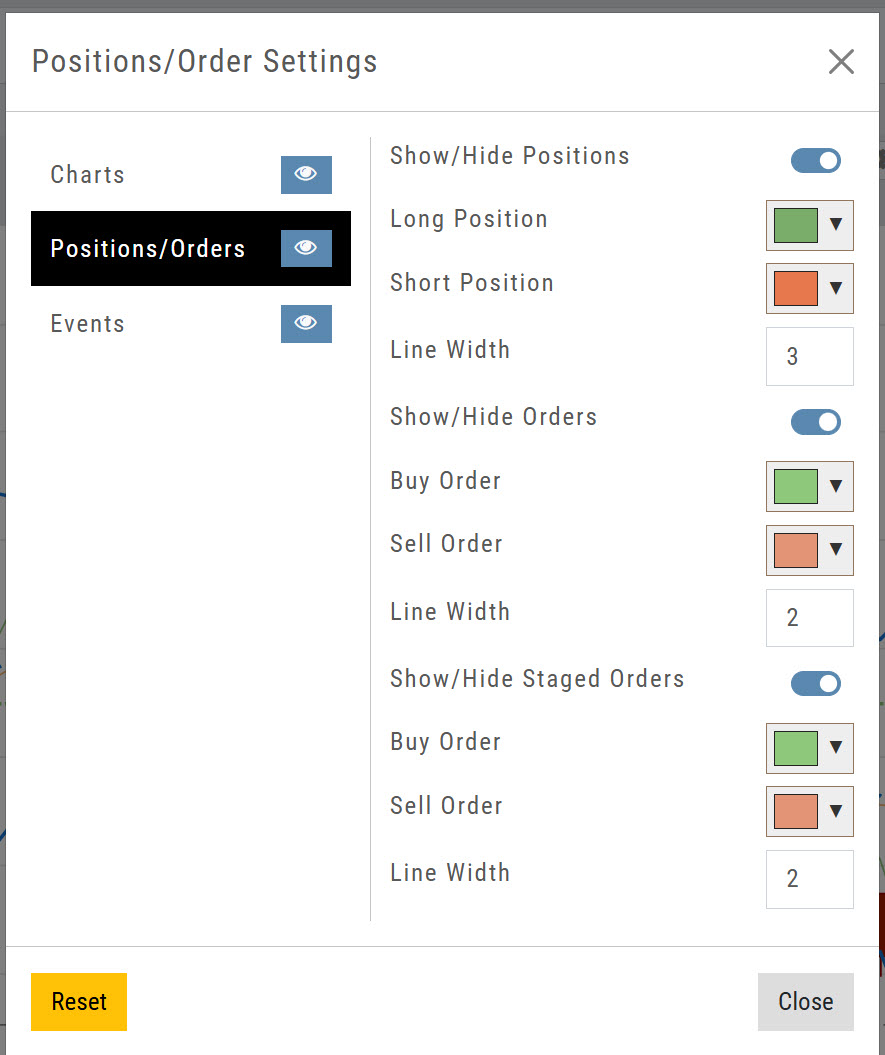
Click on the Price Chart Control gear icon, then Positions/Orders to manage Positions, Orders & Staged Orders on the Chart to further differentiate activity.
- Toggle to display or hide
- Select colors for Long/Short Positions
- Select line width
Manage Pre-Post Trading Bars on the Chart
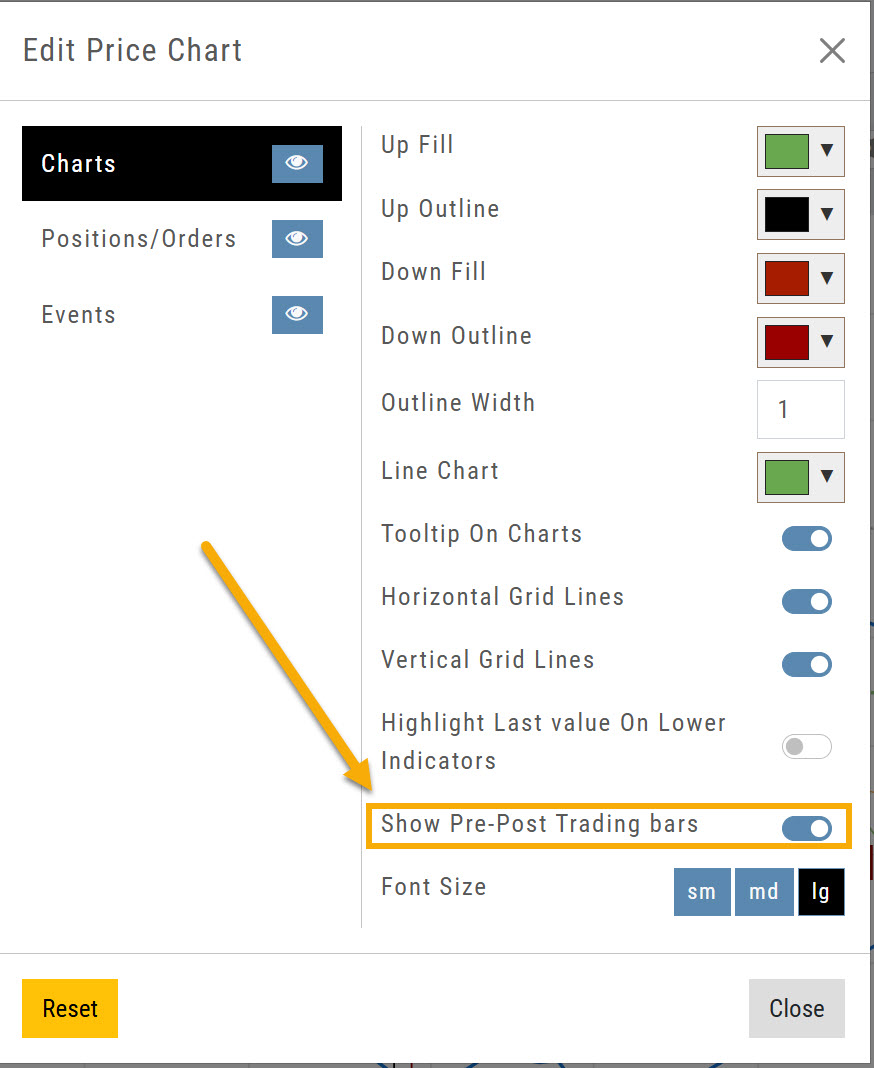
The Price Chart settings now let you display pre-market and post-market bars on intraday charts only.
Open Edit Price Chart from the gear icon and turn Show Pre-Post Trading bars on. If you don't want them, turn the toggle off.
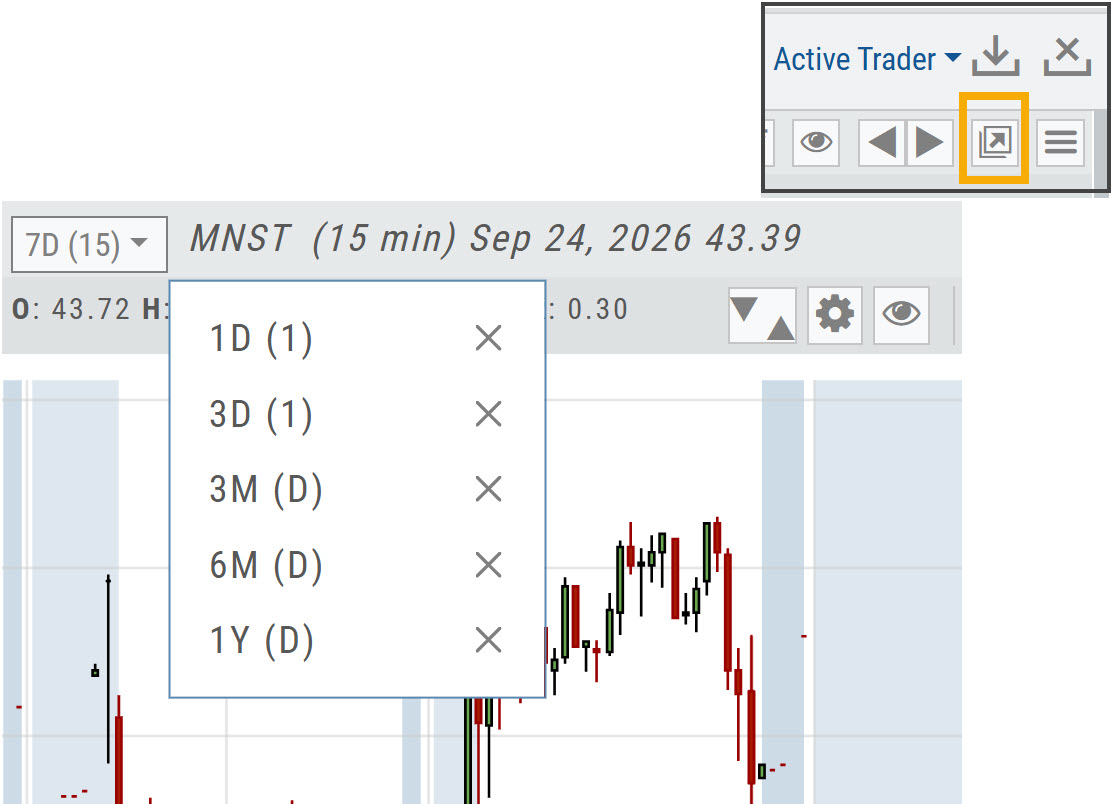
Access Your Favorite Interval/Time Frame on Full Size Charts
Click the Go Big icon near the upper right corner, above the chart, to expand the chart to screen size.
Your Favorite interval/time frame chart views are available from the top left corner of the chart.
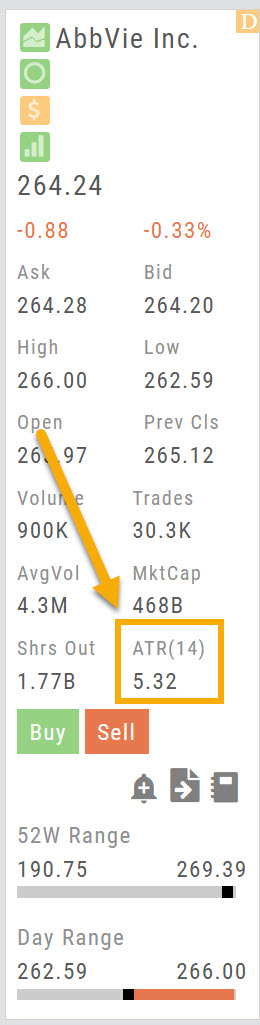
ATR Added to the Stock Info Bar
ATR(14) has been added to the stock info bar, next to Shrs Out.
ATR (Average True Range) shows how much a stock typically moves over the last 14 periods, a quick read on its volatility.
Fixes / Change Log
- FixedTradier Live: BNY Symbol: BNY now displays on the chart. (Positions showed the former symbol, BK, which changed to BNY in May.)
- FixedTradier: SEI Symbol: SEI no longer displays as SOI.
- FixedHome Page Sector Bar Graph: now updates.
- FixedCompare: company names now display.
- FixedChart Profiles: your chart profiles now save.
- FixedTrendlines: now extend past the last candle when time is added to the chart.
- FixedModify Orders on Chart: now works correctly.
- FixedSector List: Media & Telecommunications is back in the list.
Trend Lines, Notes & Shapes and Advanced Annotations
Customize your charts with Trend Lines, Notes and Advanced Annotations.
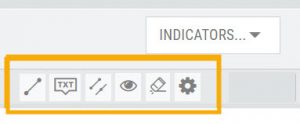 These tool icons are available above the chart, just below the Indicators drop-down box.
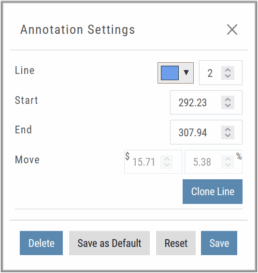
Each Annotation can have a Default Setting. This means all initially created lines, for example, will have the same settings, such as color and thickness.
Select your Annotation.
Draw it on the chart.
Click to display the dialog setting.
Adjust settings, then click “Save as Default.”
“Reset” will revert to initial settings.
You can still customize individual lines by saving the settings instead of saving as Default.
Fibonacci Too!
The Fibonacci Annotation has been enhanced to allow you to select which Retracement Levels you want to view, in addition to adjusting the color for each and the overall transparency.
The settings can be set as the Default for new chart entries or customize each entry, then “Save”.
**Please note: Existing Fibonacci annotations cannot be edited with this new coding. They must be deleted, then added back.
In addition, individual retracements can be extended Right and/or Left. Click the annotation on the chart to open the dialog box.
Note: The Extend Right/Left option cannot be set as a default setting.
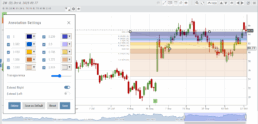
Clicking on any Trend Line, Note, or Advanced Annotation, will display the “Annotation Settings” box for that entry.
The Annotation Settings box can be repositioned elsewhere on the platform, if needed.
Line Color, Line Width and if applicable, Background Color and Transparency can be changed.
Be sure to click ‘Save’!
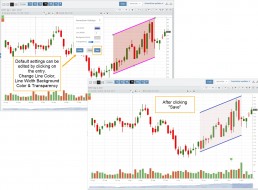
Note: Parallel channels are initially drawn horizontally. To change orientation click on the annotation then grab one of the ‘edit dots’ to drag to the position you wish.
Then click “Save” on the dialog box.